GPU Hotspot Temperature Explained: Why It Matters More Than Edge Temp
Your GPU's hotspot temperature is the hottest point on the die — and the number that decides throttling. Here's what it is, why it matters, and what to do about it.
By NvpwrControl Team · GPU hotspot temperature · GPU temperature · thermal throttling · laptop GPU · HWiNFO
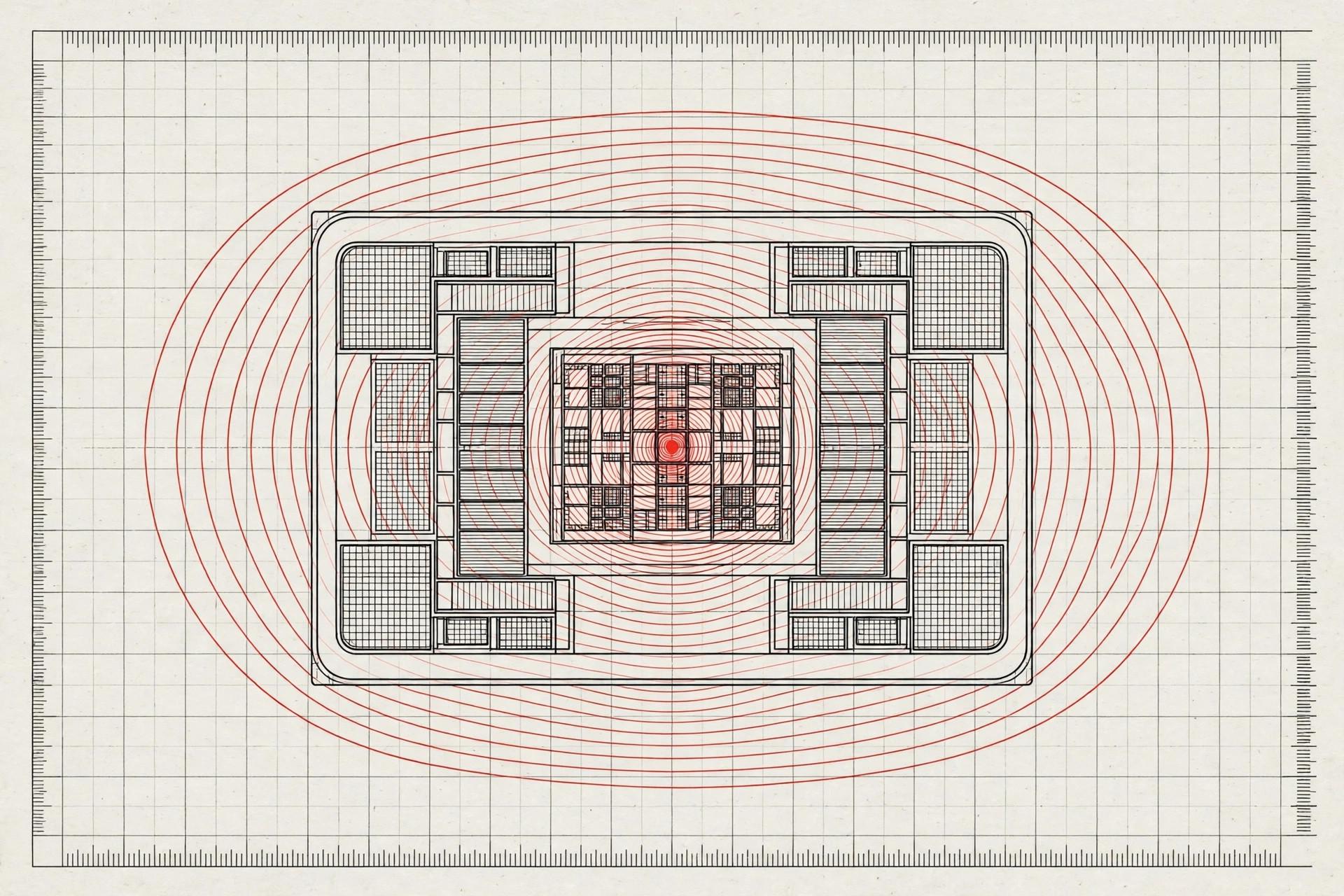
If you have ever opened HWiNFO while gaming on a laptop, you have probably noticed two GPU temperature readings that never agree. One is labelled GPU Temperature. The other is GPU Hotspot Temperature, and it is always higher. Most guides tell you to watch the first number and ignore the second. That is backwards. The hotspot is the reading that actually decides whether your laptop throttles, and it is the one that tells you the truth about your cooling.
What the two temperatures actually measure
A modern laptop GPU is not a single lump of silicon that heats up uniformly. It is a die covered in different functional blocks — shader cores, memory controllers, video engines, and more — and each block generates a different amount of heat depending on what the GPU is doing. To keep track of all this, NVIDIA places a network of thermal sensors across the die.
The edge temperature — the reading most tools call simply "GPU Temperature" — comes from a sensor at the edge of the die. It is a useful number, but it is a reading from one of the cooler spots on the chip. It tells you roughly how hot the GPU package is running overall.
The hotspot temperature is different. It reports the highest reading from any sensor in that network — the single hottest point on the die at that moment. It is not an average and it is not a second opinion on the same measurement. It is the worst case, and the worst case is what the GPU's own protection logic cares about.
Think of it like a room full of people on a hot day. The edge temperature is the thermostat on the wall. The hotspot is the temperature of the person standing directly under the heater. Both are real measurements, but only one of them tells you someone is about to overheat.
Why hotspot runs hotter than edge temp
The gap between the two readings is not a fault. It is physics.
The shader cores in the middle of the die do the heavy work in a game — the geometry, the lighting, the frame rendering — and they generate the most heat. The edge of the die, where the edge sensor sits, is further from that action and closer to the cooler parts of the package. Heat spreads, but it does not spread instantly or evenly, so a temperature gradient forms across the chip: hottest in the middle, cooler at the edges.
That is why the hotspot reading is always above the edge reading, and why the gap widens under load. At idle, when the whole die is barely working, the two numbers sit close together. Under a sustained gaming load, the centre of the die heats up faster than the edges can shed that heat, and the gap grows.
A gap between the two readings is therefore normal on every GPU. What matters is not that a gap exists, but how big it gets and how it behaves over time — which we will come back to below.
Why hotspot matters more than edge temp
There are two reasons the hotspot deserves more of your attention than the edge reading.
First, the GPU throttles on the hottest point, not the average. The thermal protection built into the GPU watches the sensors across the die, and when the hottest point approaches the chip's thermal limit, clocks come down — even if the edge temperature still looks comfortable. That is why a laptop can start losing frames while its headline GPU temperature looks fine. The edge sensor was never the sensor that mattered; it was just the one the overlay showed you.
Second, the hotspot is the earliest warning that cooling is struggling. Because it is the hottest point, it is the first reading to climb when something goes wrong: dust building up in the fans, thermal paste drying out, a heatsink that is not making even contact, or a power limit that has been raised beyond what the cooler can handle. The edge temperature will follow eventually, but by then the problem has been going on for a while. Watching the hotspot means catching trouble early, while it is still cheap to fix.
This matters doubly on laptops, where the cooling system is small, shared between the CPU and GPU, and working in a chassis with very little air. A desktop card with a large heatsink has thermal headroom to spare. A laptop does not, and the hotspot is where that shortage shows up first.
What pushes hotspot temperature up
Anything that adds heat to the die or takes cooling away from it will push the hotspot up. The common culprits:
- A higher power limit. More watts in means more heat out. Every watt the GPU is allowed to draw beyond its stock limit becomes heat on the die, the VRAM and the voltage regulators. This is the single biggest lever on hotspot temperature, and it is why the hotspot is the number to watch when you raise a limit.
- Sustained heavy load. Short bursts let the heatsink catch up between spikes. A long gaming session or a benchmark loop keeps the die hot continuously, and the hotspot settles at its highest sustained value.
- Dust and blocked airflow. Laptop fans pull in dust over months of use, and that dust collects on the heatsink fins. Less airflow means less heat removed, and the hotspot is the first reading to show it.
- Uneven heatsink contact. If the heatsink is not pressing evenly on the die, some areas shed heat well and others do not. The hotspot sensor sits over the area that is not shedding heat, so a contact problem shows up as a large gap between edge and hotspot.
- A thin chassis. Thin and light gaming laptops have less room for fans and heatsinks, so their coolers saturate sooner. Their hotspot readings will run higher than a thicker laptop with the same GPU, even at the same power limit.
None of these is exotic. They are the ordinary realities of laptop cooling, and they are all visible in the hotspot reading before they are visible anywhere else.
How to read hotspot temperature while gaming
You need a tool that exposes the sensor. Two free options do it well:
- HWiNFO64, in sensors-only mode, lists a GPU Hotspot Temperature sensor. Run it in the background while you game, then check the maximum value it recorded.
- GPU-Z shows the same reading on its Sensors tab, including a live graph.
The right way to use the reading is to watch it under sustained load, not at idle. Start your game or benchmark, play for ten or fifteen minutes until temperatures stabilise, and note the hotspot value it settles at — and the gap between it and the edge temperature. That settled value is your laptop's real thermal state. A number captured in the first thirty seconds of a benchmark tells you almost nothing.
It is also worth checking the reading twice: once at your stock power limit, and once after any change you make. That before-and-after comparison is the only honest way to know what a change actually cost you in heat.
Hotspot temperature and raising the power limit
This is where the hotspot reading earns its keep. Raising a laptop GPU's power limit — for example, taking an RTX 5080 Laptop from its 175W stock cap toward its 250W maximum, or an RTX 4090 Laptop from 150W toward 250W — gives the GPU more watts to turn into frames. Those extra watts also become extra heat, and the hotspot is the first place that heat appears.
Before you raise a limit, know your baseline. Record your hotspot temperature under sustained load at stock settings. Then raise the limit in small steps — 5W at a time is a sensible pace — and re-measure after each step. If the hotspot climbs sharply for a small gain in performance, you have found the point where your cooler, not your power limit, is the bottleneck. Pushing past it buys you heat without frames.
A few honest risks belong in any discussion of raising power limits:
- More heat everywhere, not just the GPU. Higher power means more heat on the GPU, the VRAM and the voltage regulators, and in a shared laptop cooler, on the CPU as well.
- Your adapter has to keep up. The power adapter must supply the GPU plus the CPU. If it cannot, the laptop will throttle or drain its battery while plugged in.
- Warranty depends on your laptop maker. Some makers treat power-limit changes as a warranty issue and some do not. Check before you change anything.
- Never flash a VBIOS to raise a limit. That is a far riskier route than working with the driver, and it is not necessary: a tool that works with the NVIDIA driver directly can change the limit without touching the VBIOS.
NvpwrControl works that way — it raises the limit through the NVIDIA driver, never flashes the VBIOS, and backs up driver settings before changing anything. Its telemetry shows clocks, voltage, power, temperature and hotspot, so the number this article is about is visible in the same place you set the limit. That matters, because the whole point of a power-limit tool is to let you trade watts for frames with your eyes open — and the hotspot reading is how you keep those eyes open.
When a hotspot reading should worry you
There is no single number that means "too hot" for every laptop, because every chassis, GPU and cooler is different. What you can watch for is behaviour, not a magic threshold:
- A gap that keeps growing. A stable gap between edge and hotspot is normal. A gap that gets wider month by month, at the same power limit and the same game, points to degrading cooling — usually dust, or paste that has dried out.
- A hotspot that climbs fast while the edge barely moves. If the edge temperature stays reasonable but the hotspot shoots up under load, heat is not spreading evenly across the die. That is the signature of a contact problem between the die and the heatsink.
- Throttling that starts earlier than it used to. If your laptop used to hold its clocks for an hour and now throttles after twenty minutes at the same settings, check the hotspot first. It will usually have crept up.
If you see any of these, fix the cooling before you touch the power limit. Clean the fans and vents, make sure the laptop has clear airflow underneath it, and if the problem persists, have the thermal paste and heatsink mounting checked. Raising the power limit on a laptop whose cooling is already struggling is how you turn a small problem into a dead GPU.
The bottom line
Edge temperature tells you how hot your GPU is on average. Hotspot temperature tells you how hot it is at the worst point on the die — and the worst point is what throttles, what degrades, and what fails. It is the more honest number, and it is the one to watch when you are deciding whether your laptop has thermal headroom to spare.
So next time you open HWiNFO, look past the headline temperature. Note the hotspot, note the gap, and note how both behave under sustained load. If the numbers are stable and the gap is steady, your cooling is doing its job and you have a real baseline to measure any change against. If the gap is growing or the hotspot is climbing fast, fix that first. A power limit is only worth raising when the cooler underneath it can carry the extra heat — and the hotspot is how you know.
Notes — Questions this entry raises
What is GPU hotspot temperature?
Hotspot temperature is the reading from the hottest sensor on the GPU die. Modern NVIDIA laptop GPUs carry a network of thermal sensors across the chip, and the hotspot value reports the highest of them at any moment. Edge temperature, by contrast, is a single sensor reading taken at the edge of the die, and it is usually the lower of the two.
Why is hotspot temperature higher than edge temperature?
The die does not heat evenly. The shader cores and other dense blocks of the chip generate far more heat than the edges, so the centre of the die runs hotter than its perimeter. The hotspot sensor sits over the busiest part of the chip, while the edge sensor sits where it is cooler. A gap between the two is normal and expected on every GPU.
What causes a high GPU hotspot temperature?
The usual causes are the same things that raise GPU temperature generally: a high power limit, sustained heavy load, dust-clogged fans, and poor contact between the die and the heatsink. Because the hotspot is the hottest point on the chip, it is also the first reading to climb when cooling is struggling or contact is uneven.
Does raising the power limit increase hotspot temperature?
Yes. Raising the power limit lets the GPU draw more watts, and more watts become more heat on the GPU, the VRAM and the voltage regulators. The hotspot reading is the one to watch when you raise a limit, because it shows the worst-case temperature on the die. Raise the limit in small steps and monitor with HWiNFO or GPU-Z.
How do I monitor GPU hotspot temperature?
Open HWiNFO64 in sensors-only mode and look for the GPU Hotspot Temperature sensor while gaming or running a benchmark. GPU-Z shows the same reading. Watch it under sustained load rather than at idle — the number that matters is the one your laptop settles at after ten or fifteen minutes of real use.
Is a big gap between edge and hotspot temperature a problem?
A gap is normal, since the hotspot is always hotter than the edge. What deserves attention is a gap that is large and growing over time, or a hotspot that climbs fast under load while the edge temperature barely moves. That pattern can point to uneven contact between the die and the heatsink, dried-out thermal paste, or dust choking the cooler — all worth investigating before you raise any power limit.
Table — Keep reading