Laptop GPU Power Limit and Battery Life: What Changes When You Raise the Cap
Raising your laptop GPU's power limit changes how it behaves on battery and on the charger. Here's what actually changes for battery life, charging and heat.
By NvpwrControl Team · laptop GPU · power limit · battery life · TGP · thermals
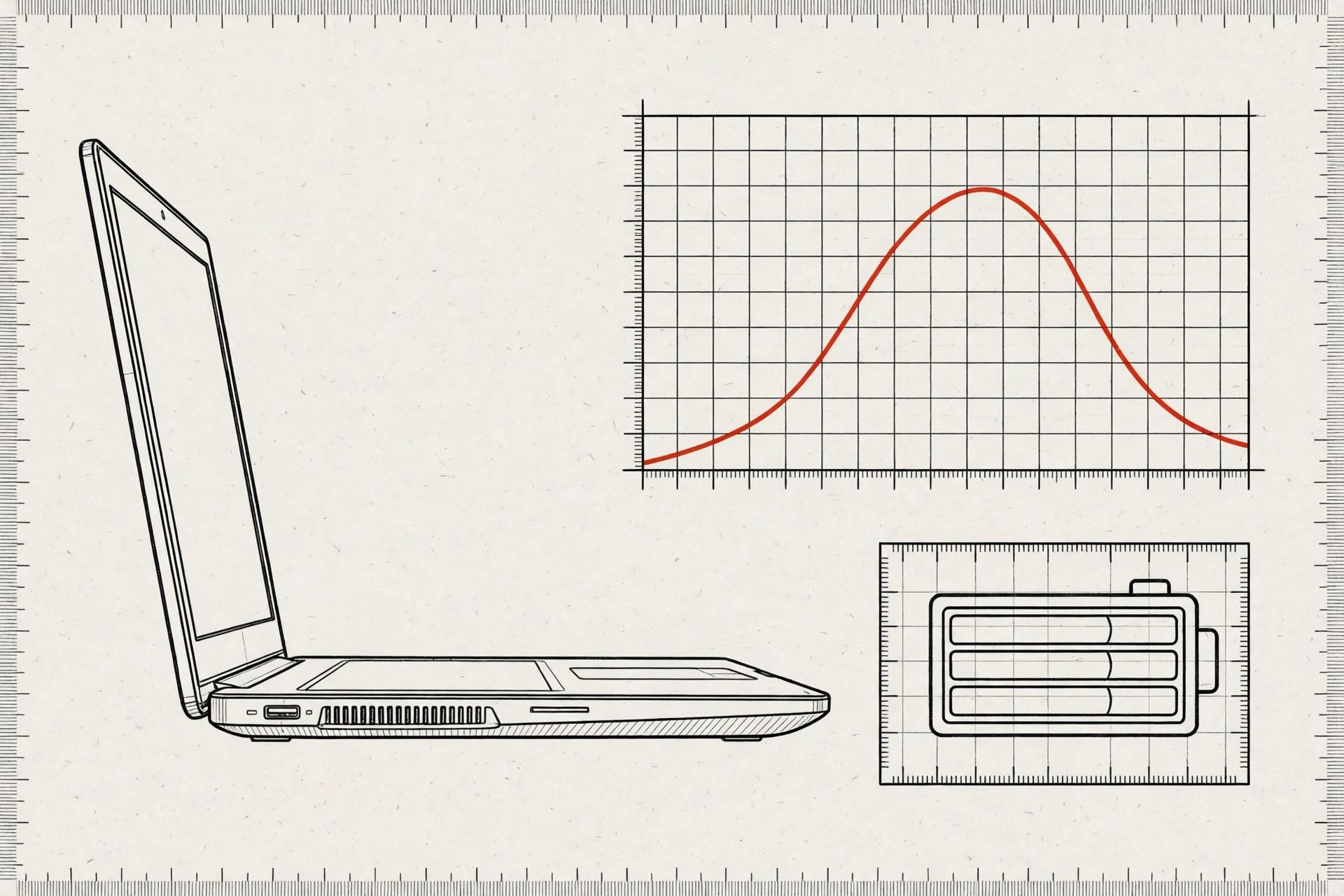
Your laptop's GPU power limit — the TGP cap — decides how many watts the graphics chip is allowed to draw. Raise it, and the GPU can hold higher clocks for longer while you're plugged in. But a laptop is not a desktop: it has a battery, a power adapter with a fixed wattage, and a cooling system sized for the stock configuration. Changing the cap ripples through all three.
This guide explains what actually changes when you raise the cap: battery life, charging behaviour, heat, and what to check before you touch anything.
What the power limit actually controls
The total graphics power (TGP) limit is a ceiling, not a constant draw. Your GPU only pulls up to the limit when the workload demands it. Browsing, video playback and light work sit far below the cap, so raising it changes nothing about everyday use.
The limit matters under sustained load — gaming, rendering, benchmarks — when the GPU would otherwise hit the ceiling and hold back its clocks. A raised cap lets it draw more power in those moments, which is where the extra performance comes from. NvpwrControl's published 3DMark results show around 30% more GPU performance in 3DMark at the raised limits, for example an RTX 4090 Laptop scoring 25,564 in Time Spy Graphics unlocked versus 21,007 stock.
The key point for battery life: the cap is a ceiling the GPU can reach, not a floor it always sits on. Raising it doesn't mean the GPU draws more power all the time. It means it can draw more when the load is heavy.
On battery: the cap rarely matters
Here is the part most guides skip. When you unplug a gaming laptop, it doesn't keep running at full power. Laptops deliberately reduce CPU and GPU performance on battery, because a battery alone cannot sustain the combined draw of a high-end CPU and GPU for long, and because draining a battery at that rate would empty it in well under an hour.
So if you raise your GPU's power limit and then game on battery, don't expect the higher cap to engage. The battery-mode power behaviour sits below the cap in almost every case. Your battery life while gaming unplugged is governed by the laptop's battery profile, not by the raised TGP ceiling.
That doesn't mean the raised limit is irrelevant to battery life. It means the effect shows up somewhere else: on the charger.
On the charger: the adapter is the real limit
When you're plugged in, the power adapter is the source of every watt the laptop uses. The adapter has a fixed rating — and the laptop's total draw is the GPU plus the CPU plus everything else in the system.
This is where the honest risk lives. NvpwrControl's guidance states it plainly: the adapter must supply GPU plus CPU wattage, or the laptop throttles or drains the battery. Raise the GPU cap by tens of watts, and the combined draw can exceed what the adapter can deliver. When that happens, one of two things occurs:
- Throttling. The laptop pulls power back to fit the adapter, and you don't get the performance the raised cap promised.
- Battery drain while plugged in. Some laptops make up the shortfall from the battery. You can watch the charge percentage slowly fall during a long gaming session even with the charger connected.
Neither outcome damages the laptop outright, but both defeat the purpose of raising the limit — and slow battery drain during plugged-in gaming is a sign your adapter is undersized for the new ceiling. Before raising any limit, check your adapter's wattage rating (printed on the brick) and compare it against what your GPU and CPU can draw together. If the numbers are close, the adapter is your bottleneck, not the GPU.
More power means more heat — and heat affects the battery too
Every extra watt the GPU draws becomes heat. More heat on the GPU, VRAM, VRMs and the cooling system is the most direct consequence of raising the cap, and it's why the honest advice is always the same: raise in steps and monitor with HWiNFO or GPU-Z.
Heat matters for the battery in a secondary way. Laptop batteries sit in the same chassis as the GPU and its cooling system, and sustained high temperatures are not what lithium batteries like. A laptop that runs hotter for longer because of a raised power limit puts more thermal stress on the battery over time. This isn't a reason to panic — it's a reason to keep temperatures in check and to avoid running an unlocked GPU at full tilt for hours on end without adequate cooling.
Practical steps that help:
- Raise the limit in 5 W steps — NvpwrControl adjusts in 5 W increments — and check temperatures at each step before going further.
- Watch hotspot temperature, not just the edge temperature. The hotspot is the hottest point on the die and is the number that matters for throttling and longevity.
- Make sure the cooling system can keep up. Clean vents and a laptop stand that improves airflow cost nothing and matter more than most people think.
- If temperatures climb faster than performance does, you've found your practical ceiling, whatever the validated maximum says.
What raising the cap does — and doesn't — change day to day
It helps to separate the scenarios:
Plugged in, gaming or rendering. This is where the raised cap does its work. The GPU can draw more power, hold higher clocks, and deliver more frames — as long as the adapter can supply the watts and the cooling can shed the heat.
Plugged in, light use. Nothing changes. The GPU draws what the workload needs, far below either the stock or the raised cap. Battery life and charging behaviour are unaffected.
On battery, light use. Nothing changes either. The cap is irrelevant at low draw.
On battery, gaming. The laptop's battery profile governs performance, not the raised cap. Battery life while gaming unplugged stays short regardless — heavy 3D load drains a laptop battery fast at any power limit.
Plugged in, long heavy sessions with a small adapter. This is the scenario to watch. If the adapter can't keep up, you may see throttling or slow battery drain while plugged in.
How NvpwrControl handles the change
NvpwrControl is a portable Windows app — extract the zip, run NvpwrControl.exe as an administrator, no install — that raises NVIDIA laptop GPU power limits by working with the NVIDIA driver directly. It never flashes VBIOS. Before changing the MAX limit it backs up driver settings and checks the GPU, PCI IDs, driver and VBIOS against the live power policy, so a change only happens when the hardware matches.
The flow is deliberate: set the MAX limit, save, reboot, then set the CURRENT runtime limit while the GPU is idle. An auto-reapply option re-sets the limit after MSI Center mode switches, with a kernel event and a 1–10 second delay. And if you ever want out, Reset all returns everything to stock and removes the override and autostart.
Validated ranges (stock to maximum) are: RTX 5090 175→250W, 5080 175→250W, 5070 Ti 140→180W, 5070/5060/5050 115→140W; RTX 4090 150→250W, 4080 150→225W, 4070/4060 120→150W, 4050 115→140W. RTX 30 (Ampere) and RTX 20 (Turing) support is experimental. Limits adjust in 5 W steps, and the app also offers core clock offsets up to ±1000 MHz, memory offsets up to ±3000 MHz, and telemetry for clocks, voltage, power, temperature, hotspot, P-states and rails.
Note that the ceiling is only half the story. The other half is your adapter and your cooling. A 250W cap on an RTX 5090 laptop only delivers its benefit if the adapter and the thermal system can support it.
Before you raise anything: a quick checklist
- Check the adapter. Read the wattage printed on the power brick. Make sure it covers your GPU's new maximum plus your CPU's draw with headroom to spare.
- Check temperatures at stock first. Run a heavy load with HWiNFO open and note GPU temperature, hotspot and power draw. This is your baseline.
- Raise in 5 W steps. Change one thing at a time and re-test. If temperatures jump faster than performance, stop there.
- Watch for plugged-in battery drain. If the charge percentage falls during gaming while plugged in, the adapter is undersized for the new limit. Either lower the cap or accept the trade-off.
- Know your warranty position. Warranty depends on the laptop maker — check the policy before changing power limits.
- Know how to roll back. Reset all in NvpwrControl returns everything to stock. Test the rollback once so you know it works before you need it.
The bottom line
Raising your laptop GPU's power limit changes the ceiling on what the GPU can draw under load. It doesn't change idle or light-use power draw, it barely matters while gaming on battery, and it only pays off while plugged in — provided the adapter can supply the extra watts and the cooling can shed the extra heat. The battery's real risks are indirect: an undersized adapter that drains the battery while plugged in, and extra heat soaking the chassis during long sessions.
Raise the cap in small steps, monitor temperatures and power draw, and respect the adapter's limits. Done that way, the extra performance is real — around 30% more GPU performance in 3DMark at the validated limits — without nasty surprises from the battery.
Notes — Questions this entry raises
Does raising my laptop GPU power limit hurt battery life?
It can, but mostly indirectly. On battery, laptops already run at reduced power, so the raised cap rarely engages while unplugged. The bigger battery risk is a power adapter that can't keep up: if the adapter can't supply the combined GPU and CPU wattage, the laptop throttles or drains the battery even while plugged in.
Will my laptop drain the battery while plugged in if I raise the power limit?
It can if the adapter is undersized for the new limit. The adapter must supply GPU plus CPU wattage. If total draw exceeds what the adapter can deliver, the laptop makes up the difference from the battery, and you may see the charge percentage fall during heavy gaming even with the charger connected.
Does a higher GPU power limit make my laptop run hotter?
Yes. More power means more heat on the GPU, VRAM, VRMs and the cooling system. Raise the limit in small steps and monitor temperatures, hotspot and power draw with HWiNFO or GPU-Z.
Does raising the power limit void my warranty?
It depends on the laptop maker. Warranty terms differ between manufacturers, so check your maker's policy before changing power limits.
Can I undo a raised power limit?
Yes. With NvpwrControl, Reset all returns everything to stock and removes the override and autostart. The app also backs up driver settings before changing the MAX limit, so you can roll back safely.
Does a higher power limit help when gaming on battery?
Barely. Laptops cap performance on battery regardless of the power limit, because the battery alone cannot sustain full GPU and CPU draw. The raised limit mainly matters while plugged in, where the adapter supplies the extra watts.
Table — Keep reading