Why Laptop GPUs Use the Same Chips as Desktop Cards but Half the Power
Laptop and desktop GPUs often share the same silicon, yet the laptop version runs at roughly half the wattage. We explain why the power gap exists, what it costs in performance, and what to check before you buy or unlock.
By NvpwrControl Team · laptop GPU · TGP · power limit · RTX laptop · desktop GPU · thermals
The short answer
It feels like a trick. You buy a laptop with an RTX 5090 inside, the same family name as a flagship desktop card, and then you discover it is capped at 175W while its desktop cousin is allowed to draw several hundred watts. How can the same chip be half the card?
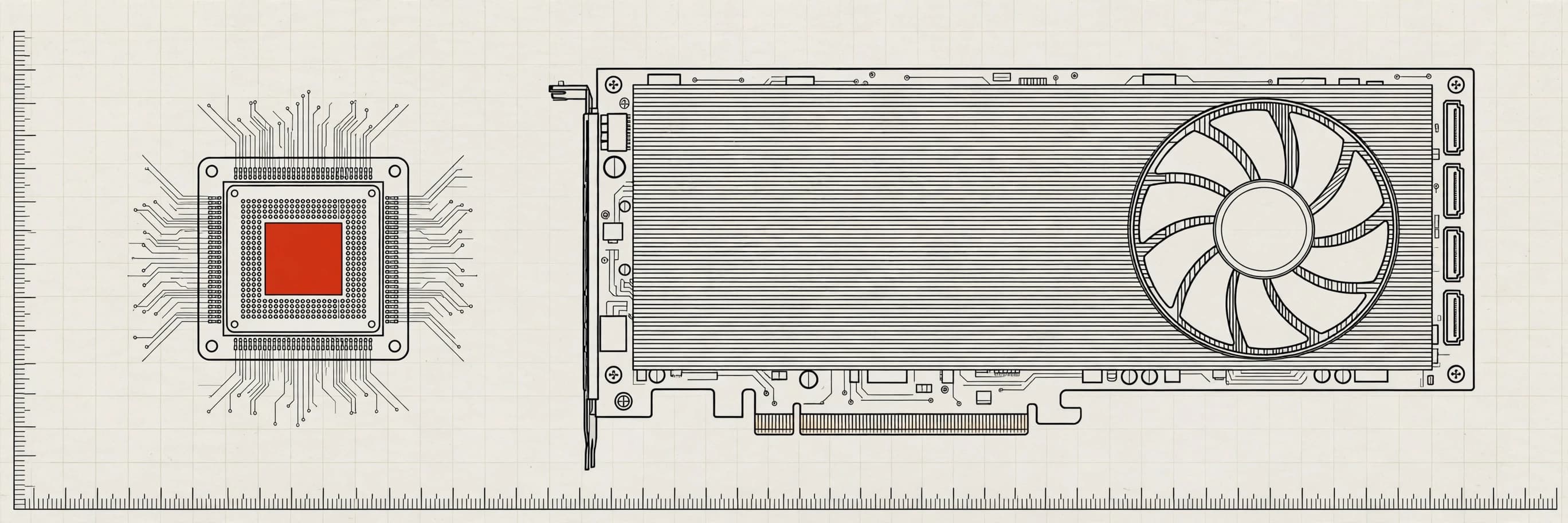
The short answer is that the chip is only one part of a graphics card. The rest — the cooler, the power delivery, the power supply, and the space all of it lives in — decides how much of that chip's potential you actually get. Laptop makers reuse proven silicon because designing a brand-new chip for every form factor would be wasteful, but they then wrap that silicon in a power budget a laptop can actually survive. The wattage gap is not a marketing gimmick. It is physics, squeezed into a chassis a few centimetres thick.
What "the same chip" really means
When people say a laptop GPU uses the same chip as a desktop card, they usually mean one of two things, and the distinction matters.
The first is literal die sharing. The RTX 5090 Laptop uses the GB203 die, which is also the die in the desktop RTX 5080, a card rated at 360W. The RTX 4090 Laptop uses the AD103 die, the same die as the desktop RTX 4080, rated at 320W. In both cases the laptop version is capped at 175W. Same silicon, radically different power allowance.
The second, more common case is shared architecture. A laptop GPU may belong to the same generation and design family as a desktop card, with a similar feature set and similar building blocks, but be a mobile variant tuned from the start for lower power. Either way, the important point is the same: the name on the box tells you which generation and tier of silicon you are getting, not how hard that silicon is allowed to run in your particular laptop.
That is also why two laptops with the same GPU name can perform differently. A laptop GPU's TGP — its Total Graphics Power, the combined power budget for the GPU chip and its memory — is set per model by the laptop maker, within a range NVIDIA allows. One RTX 4060 laptop might run at 140W while another runs at 95W, and the gap between those two machines can be obvious in games. The chip is the same; the leash is different.
Why the laptop version gets half the power
Heat has nowhere to go
A desktop graphics card is essentially a large heatsink with fans attached, sitting in a case full of airflow. A laptop GPU shares a thin chassis with a CPU, memory, storage, and a battery, cooled by small fans pushing air through narrow vents. Every extra watt becomes heat that this compact system must remove, and it must remove it quietly enough that the laptop is still usable on a desk or a lap.
Push a laptop GPU to desktop wattages and temperatures climb fast — not just on the GPU core, but on the memory and the voltage regulators feeding it. Once temperatures get too high, the GPU protects itself by lowering clock speeds, which is thermal throttling. A laptop running at desktop power for a few minutes and then throttling back below its stock performance would be worse than a laptop running steadily at a lower, sustainable wattage. The cap exists to keep performance consistent, not just to keep the laptop cool in a benchmark.
The power adapter is a shared budget
A desktop power supply can deliver hundreds of watts to the graphics card alone. A laptop adapter must feed everything: the GPU, the CPU, the screen, the storage, and charging the battery, all at once. If the GPU is allowed to take too much, there may not be enough left for the CPU, or the laptop may draw from the battery even while plugged in.
This is why adapter wattage matters so much when power limits are discussed. The adapter must supply GPU plus CPU wattage, or the system throttles. Anyone considering a higher GPU power limit should check this first: a bigger GPU budget on a small adapter does not create more power, it just moves the bottleneck somewhere else.
Noise, battery, and reliability
Higher wattage also means louder fans, shorter battery life, and more thermal stress over the life of the machine. Laptop makers have to design for the worst case — a hot room, a blocked vent, a long gaming session — not for a cool, well-ventilated test bench. A conservative power cap is their safety margin for all of those conditions at once, and it also protects components that were not designed for desktop-class heat.
None of this means the cap is always perfectly chosen for your use. Laptop makers set one limit for every buyer of a model, from the person gaming in a cool room with a cooling pad to the person playing on a bed with the vents half covered. That single limit is necessarily cautious, which is why there is often headroom for a careful owner to use — provided the cooling and adapter can actually support it.
What the power gap costs in performance
A GPU's clock speed — how fast it runs — depends heavily on how much power it is allowed to draw. Give it more power and it can hold higher clocks for longer, especially in sustained gaming loads rather than short bursts. Take power away and clocks drop, frames drop with them, and the laptop can feel slower than its spec sheet suggests.
This is where the approved, published numbers are instructive. NvpwrControl's published 3DMark results compare stock and unlocked laptop GPUs in the same machines: an RTX 4090 Laptop scored 25,564 in Time Spy Graphics unlocked versus 21,007 stock, an RTX 5070 Ti Laptop scored 20,858 versus 17,225, an RTX 5090 Laptop scored 9,672 in Steel Nomad versus 5,895 stock, and an RTX 5080 Laptop scored 7,338 versus 4,850. The headline across those results is around 30% more GPU performance in 3DMark from unlocking.
Read those numbers carefully. They show how much performance a conservative laptop cap can leave on the table, and how much of it a higher limit can recover in the same chassis. They do not show a laptop matching a desktop card. The unlocked laptop is still cooled by laptop fans, fed by a laptop adapter, and sharing its thermal budget with a laptop CPU. The gap narrows; it does not close.
It is also worth noting that not every game or workload benefits equally. A game that is limited by the CPU, or one that already runs at high frame rates, may barely change when the GPU limit rises. The biggest gains tend to show up in sustained, GPU-heavy loads where the GPU was previously pinned at its power ceiling while still having temperature headroom. If temperatures are already the limiting factor, more power will mostly make more heat, not more frames.
Can you close the gap yourself?
You can narrow it, carefully, and only within what your hardware can support. That is the honest version of power unlocking.
The first step is always measurement. Before changing anything, find out what is actually limiting your laptop today. Check the GPU's power limit (TGP) in Windows, then monitor GPU temperature, hotspot temperature, and power draw while gaming with HWiNFO or GPU-Z. If the GPU is pinned at its power limit with temperature headroom, a higher limit may help. If it is already hot and throttling, better cooling — or simply accepting the limit — is the right move.
If you do raise the limit, raise it in steps and monitor after each change. That is the approach NvpwrControl is built around: it is a portable Windows app — extract the zip and run NvpwrControl.exe as administrator, with no install — that raises NVIDIA laptop GPU power limits by working with the NVIDIA driver directly. It never flashes VBIOS. It backs up driver settings before changing them, and checks the GPU, PCI IDs, driver, and VBIOS against the live power policy before any write. The flow is to set the MAX limit, save, and reboot, then set the CURRENT runtime limit while the GPU is idle. An auto-reapply option re-sets the limit after MSI Center mode switches or kernel events, with a 1–10 second delay and no CPU use in between. Reset All returns everything to stock and removes the override and autostart.
Validated ranges give a sense of what is realistic for recent hardware: RTX 5090 and 5080 laptops from 175W to 250W, RTX 4090 from 150W to 250W, RTX 4070 and 4060 from 120W to 150W, and RTX 4050 from 115W to 175W. RTX 30 and RTX 20 series laptops are experimental. Limits adjust in 5W steps, with core clock offsets up to ±1000 MHz and memory offsets up to ±3000 MHz via NVAPI, plus experimental V/F curve voltage control and telemetry covering clocks, voltage, power, temperature, hotspot, P-states, and rails. MSI Afterburner, by contrast, can shift clocks on a laptop but cannot raise the laptop GPU's power ceiling — that ceiling is what a tool like this changes.
State the risks plainly, because they are real: more heat on the GPU, VRAM, and VRMs and their cooling; the adapter must supply GPU plus CPU wattage or the system throttles or drains its battery; and warranty depends on the laptop maker. Raise in steps and monitor with HWiNFO or GPU-Z. If temperatures climb, if throttling appears, or if anything becomes unstable, step back down. Resetting to stock is always available, and it is better than defending a limit your cooling cannot sustain.
There is one more limit no software can fix: the physical cooler. A cooling pad, a raised laptop stand, clean vents, and fresh thermal paste on an older machine can all help a higher limit actually pay off, because they give the extra heat somewhere to go. Without that headroom, a higher limit is just a higher temperature reading.
What to check before you buy
If you are shopping rather than unlocking, the lesson of the shared-silicon story is simple: never judge a laptop GPU by its name alone.
Look up the model's TGP before you buy. Two laptops advertising the same GPU can sit at opposite ends of its wattage range, and that difference will show up in sustained gaming far more reliably than a slightly faster CPU or a flashier screen. Check the adapter wattage too, since a high-TGP laptop on a small adapter will not sustain its advertised power. And look at reviews that measure sustained performance and temperatures, not just a short benchmark run that finishes before heat builds up.
A laptop GPU is not a cut-down desktop card in the sense of being a lesser chip. In the best-documented cases it is the same silicon, deliberately held back by the realities of a laptop chassis. Understanding that — the chip, the cooler, the adapter, and the cap between them — is what lets you judge a laptop honestly, whether you run it stock or decide, carefully, to raise its limit.
Notes — Questions this entry raises
Do laptop GPUs really use the same chips as desktop graphics cards?
Sometimes, literally yes. The RTX 5090 Laptop uses the GB203 die, the same die as the desktop RTX 5080, and the RTX 4090 Laptop uses the AD103 die, the same die as the desktop RTX 4080. In other cases a laptop GPU shares an architecture and design family with a desktop card rather than the exact same die. Either way, the laptop version is built to run inside a far smaller power and cooling budget, so the shared silicon does not mean shared performance.
Why is a laptop GPU capped at a much lower wattage than the desktop version?
Heat, space, and power delivery. A laptop has a thin chassis, small fans, and a power adapter that must feed both the CPU and the GPU, while a desktop card has a large cooler, its own airflow, and a power supply with far more headroom. Laptop makers therefore set a Total Graphics Power (TGP) limit that the cooling system and adapter can sustain. That limit, not the chip itself, is usually what holds the laptop back.
Does raising a laptop GPU power limit make it as fast as the desktop card?
No. Raising the limit can recover a meaningful amount of performance that was left on the table by a conservative cap, but it cannot turn a laptop into a desktop. The laptop still has less cooling, less power delivery headroom, and a CPU sharing the same thermal and power budget. Think of unlocking as closing part of the gap, not erasing it.
What should I check before raising a laptop GPU power limit?
Check three things first: temperatures under load, your power adapter, and your warranty position. Monitor GPU temperature and hotspot with HWiNFO or GPU-Z, make sure the adapter can supply GPU plus CPU wattage or the laptop may throttle or drain its battery under load, and remember that warranty depends on the laptop maker. Raise the limit in small steps and monitor after each change.
When buying a laptop, is the GPU name enough to judge performance?
No. Two laptops with the same GPU name can run at very different wattages, and that wattage difference often matters more than the name on the box. Always look up the model's TGP before you buy, alongside its cooling design and adapter wattage, rather than assuming every laptop with a given GPU performs the same.
Table — Keep reading