Is Raising Your Laptop GPU Power Limit Safe? Heat, Thermals and Longevity Explained
Is raising your laptop GPU power limit safe? We explain the heat, thermal and longevity trade-offs honestly, and how to raise the limit in small steps.
By NvpwrControl Team · laptop GPU · power limit · thermals · TGP · gaming laptop · safety
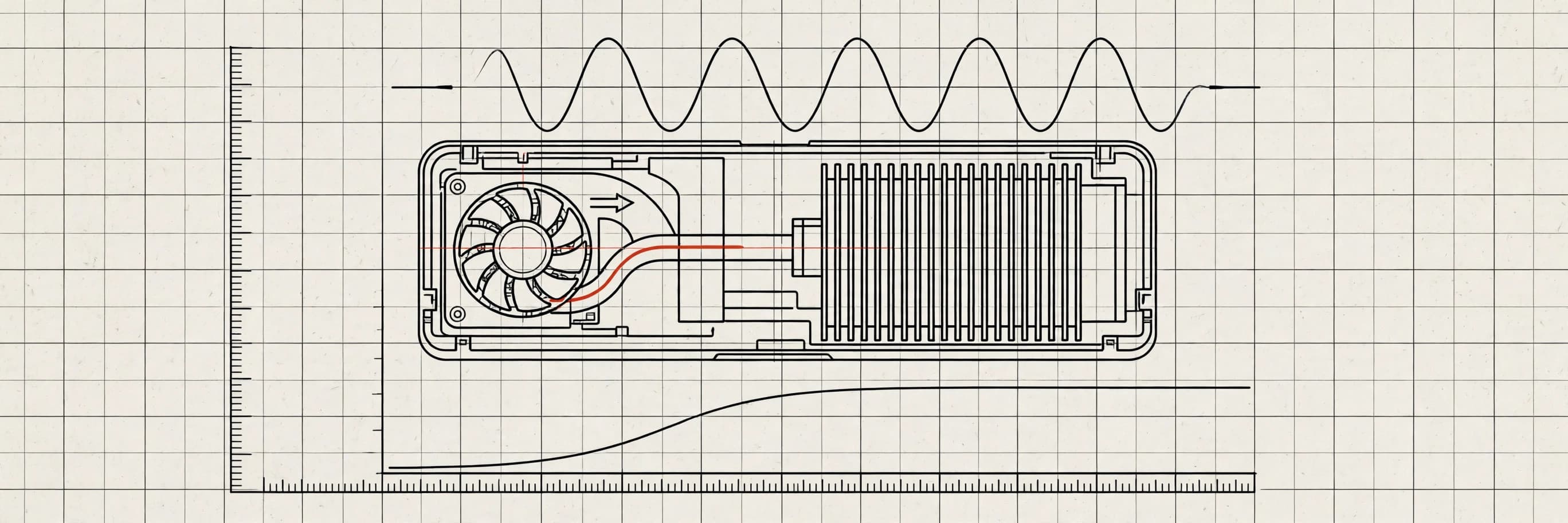
The short answer: it depends on heat, not on the wattage number
Ask whether raising a laptop GPU power limit is safe and you will get two confident, opposite answers. One camp treats any increase as reckless. The other treats it as free performance. Neither is quite right, because safety here is not decided by the wattage number on its own. It is decided by heat — where that heat goes, whether the cooling system can remove it, and whether the power adapter can supply it in the first place.
A laptop GPU power limit, or TGP, is a ceiling. Raising it does not force the GPU to draw more power all the time. It allows the GPU to draw more power when a demanding game or workload asks for it, and to hold higher clock speeds instead of throttling back to stay under the old ceiling. If the game is light, the extra headroom sits unused. If the game is heavy, the GPU will use it — and that is when the trade-offs start to matter.
This article explains those trade-offs honestly: what gets hotter, what throttling tells you, what raising the limit means for longevity, and how to approach it in steps instead of guessing.
What raising the limit actually does
A GPU's clock speed is what turns into frames, and clock speed costs power. When a GPU hits its power limit, the driver pulls the clocks down to stay under it. That is power-limit throttling. A higher limit raises the ceiling, so the GPU can hold higher clocks for longer in sustained load.
That is also why the same chip can perform so differently in different laptops. Laptop makers choose a power limit for each model based on its cooling, its adapter and its chassis. A thin laptop gets a lower limit because it cannot shed the heat of a higher one. A thicker gaming laptop gets a higher limit because it has the cooling and the adapter to match. The GPU name on the box is the same either way; the wattage is what decides sustained performance.
Raising the limit on a laptop you already own closes that gap from the other direction. It does not change the chip, the cooler or the adapter. It changes the ceiling the driver enforces. Everything that follows — the benefit and the risk — comes from that one fact.
Heat: where it actually goes
More power does not just make the GPU chip hotter. It adds heat across the whole graphics subsystem:
- The GPU itself. Higher sustained clocks mean more heat from the die, which the cooler has to move away continuously, not just in short bursts.
- VRAM. Memory chips run hotter as the GPU works harder, and they are often cooled less directly than the GPU die itself.
- Voltage regulators (VRMs). These convert power for the GPU, and they generate heat of their own. They are a common reason a laptop that looks fine on GPU temperature alone can still struggle under a higher limit.
- The cooling system. Fans spin faster and more often, heatpipes carry more heat, and exhaust air gets hotter. A cooling system that was comfortable at the stock limit may be working at its edge at a higher one.
None of this means a higher limit is automatically dangerous. It means the question to ask is not "is 200W safe?" but "can this laptop's cooling remove the extra heat, in this chassis, for a whole gaming session?" A laptop with a strong cooler and temperature headroom answers that question very differently from a thin laptop that already runs hot at stock.
Thermal throttling vs power-limit throttling
Before raising anything, find out which kind of throttling is holding your laptop back. The distinction decides whether a higher limit will help at all.
Run a demanding game for ten minutes with HWiNFO or GPU-Z open and watch three readings: power draw, GPU temperature and hotspot temperature.
- Power-limited: power draw is pinned at the limit while temperatures still have headroom. The ceiling is the problem, and raising it may help.
- Thermally limited: temperatures are at their limit while power draw sits below the ceiling. Heat is the problem, and raising the power limit will only make the laptop hotter. It will throttle thermally instead of throttling on power, and you will end up in the same place by a worse route.
This is the most useful check in the process, and it costs nothing. Skip it and you can raise the limit, watch temperatures climb, and gain nothing.
Longevity: what sustained heat does over time
Longevity is where honest answers get uncomfortable, because there is no single number for how much a higher limit shortens a laptop's life. It depends on how hot the laptop runs, for how long, and how often — and on the specific laptop, its cooling design and its components. Anyone who gives you a precise lifespan figure for raising a power limit is inventing it.
What can be said honestly is this. Sustained extra heat is the main long-term concern: components that run hotter, for longer, are under more thermal stress, and cooling parts that work harder wear faster. A modest increase that keeps temperatures comfortable is very different from a large increase that pins the laptop at its thermal limit every session.
That is why the size of the step matters, and why monitoring matters more than the target number. The goal is not to reach the highest limit a tool allows. The goal is to find the highest limit your laptop can sustain without its temperatures climbing into a range you are not comfortable with — and to stop there, even if more headroom exists on paper.
Validated ranges exist for a reason. For supported models, NvpwrControl works within ranges that have been checked against the live power policy — for example, RTX 5090 and 5080 laptops from 175W stock up to 250W, RTX 4090 from 150W up to 250W, RTX 4080 from 150W up to 225W, and RTX 4070 and 4060 from 120W up to 150W. RTX 30 and RTX 20 series laptops are experimental. A validated range is not a promise that every laptop in that range can sustain the top of it — cooling and adapters still differ — but it does mean the range itself is a known quantity rather than a guess.
The power adapter: the limit people forget
The adapter has to feed the GPU and the CPU at the same time. That is easy to forget when you are focused on the GPU number alone, and it is a common cause of disappointing results.
If the adapter cannot supply the combined wattage, the laptop throttles, or it drains the battery even while plugged in. That can happen even when temperatures look fine, which makes it confusing if you are only watching GPU temperature. Before raising the limit, check your adapter's wattage and think about what the CPU draws alongside the GPU in a demanding game. If the adapter is already close to its limit at stock settings, a higher GPU limit may not deliver the performance you expect — the system will find another ceiling.
Warranty: the honest answer is that it depends
Whether changing a GPU power limit affects your warranty depends on the laptop maker. Warranty treatment varies by manufacturer, and policies differ in what they cover and what they consider a modification. Check your maker's policy before changing anything, rather than assuming either way.
Reversibility matters here. NvpwrControl includes a Reset All option that returns everything to stock and removes the override and autostart. Still, reversibility is not a warranty guarantee — the maker's policy decides that.
How to raise the limit safely, in steps
If you have checked that you are power-limited rather than thermally limited, that your adapter has room, and that you understand the warranty position, the safe approach is deliberately boring:
- Record your baseline. Note temperatures, hotspot readings and power draw under load at stock settings, so you have something to compare against.
- Raise in small steps. NvpwrControl adjusts limits in 5 W steps. Raise by one step, not straight to the top of the range.
- Test each step properly. Run a demanding game or benchmark for a sustained session, not a thirty-second burst, and watch temperatures, hotspot and power draw with HWiNFO or GPU-Z.
- Stop at the first warning sign. If temperatures climb sharply, if the laptop starts thermally throttling, or if performance stops improving, you have found your practical ceiling. More watts beyond that point buy heat, not frames.
- Know how to undo it. The flow in NvpwrControl is to set the maximum limit, save and reboot, then set the current runtime limit while the GPU is idle. Before any change it backs up driver settings and checks the GPU, PCI IDs, driver and VBIOS against the live power policy. And Reset All returns everything to stock.
One more distinction matters for safety. NvpwrControl raises power limits by working with the NVIDIA driver directly, and it never flashes the VBIOS. Flashing a VBIOS replaces firmware on the card itself, with a real risk of bricking the GPU if something goes wrong. Driver-level power control is a different kind of change, and it is reversible in a way a bad flash is not. That difference does not make any power increase risk-free — the heat trade-offs above still apply — but it does remove one of the scariest failure modes from the process.
MSI Afterburner, for comparison, can shift clocks but cannot raise a laptop GPU's power ceiling, which is enforced by the driver power policy.
When not to raise the limit
There are clear cases where raising the limit is the wrong move, and recognising them is part of doing this safely:
- You are already thermally limited. If temperatures hit the ceiling at stock settings, more power will only add heat.
- Your adapter is already stretched. If the laptop throttles or drains the battery while plugged in at stock, a higher GPU limit will not fix that.
- Your laptop is thin and already runs hot. A thin chassis with a small cooler has less room to absorb extra heat, and the stock limit was probably chosen for that reason.
- You mostly play light games. If the GPU rarely approaches its power limit, extra headroom sits unused. You gain nothing and add heat only in the moments you do push it.
- You are not willing to monitor. Raising a limit and never checking temperatures is guessing. If you will not watch HWiNFO or GPU-Z for a few sessions, leave the limit alone.
The verdict
So, is raising your laptop GPU power limit safe? The honest answer is conditional, and that is a strength, not a dodge. It is safe enough when the laptop is power-limited rather than thermally limited, when the cooling and adapter have headroom, when you raise in small steps and monitor temperatures, and when you stop at the point where extra watts stop turning into performance. It is not safe as a blind jump to the maximum, on a laptop that already runs hot, with an adapter that is already stretched, and no monitoring.
Treat the power limit as a ceiling to tune, not a target to max out. Check whether you are power-limited or thermally limited first, raise in 5 W steps, watch the temperatures, and keep the reset option in mind. Done that way, raising the limit is a measured trade — a little more heat and fan noise, in exchange for sustained performance your laptop was already capable of cooling. Done any other way, it is just heat.
Notes — Questions this entry raises
Is raising a laptop GPU power limit safe?
It can be done safely when the laptop has cooling and adapter headroom, and when you raise the limit in small steps while monitoring temperatures. It is not risk-free: more power means more heat on the GPU, VRAM and voltage regulators, and the power adapter must be able to supply the GPU and CPU together. If the laptop is already thermally limited, raising the power limit will only make it hotter.
Does a higher GPU power limit damage the laptop over time?
Sustained extra heat is the main long-term concern, not the wattage number itself. Heat stresses the GPU, VRAM, voltage regulators and cooling system, and fans have to work harder and more often. That is why the safe approach is to raise in 5 W steps, watch temperatures with HWiNFO or GPU-Z, and stop if temperatures climb or the laptop starts throttling. A limit that keeps temperatures in a comfortable range is very different from a limit that pushes the laptop to its thermal ceiling every session.
How much should I raise my laptop GPU power limit at a time?
Raise in small steps and test each one. NvpwrControl adjusts limits in 5 W steps, which makes it easy to find the point where extra power stops helping and temperatures start climbing. After each step, run a demanding game or benchmark for a while and check temperatures, hotspot readings and power draw. If the GPU is thermally throttling, a further increase will not help.
Will raising the GPU power limit void my warranty?
It depends on the laptop maker — warranty treatment varies by manufacturer, so check your maker's policy before changing anything. NvpwrControl includes a Reset All option that returns everything to stock and removes the override and autostart, which is the cleanest way to undo a change if you need to.
Can I raise my laptop GPU power limit without flashing the VBIOS?
Yes. NvpwrControl raises NVIDIA laptop GPU power limits by working with the NVIDIA driver directly, and it never flashes the VBIOS. Before any change it backs up driver settings and checks the GPU, PCI IDs, driver and VBIOS against the live power policy. The flow is to set the maximum limit, save and reboot, then set the current runtime limit while the GPU is idle.
What should I check before raising my laptop GPU power limit?
Check three things first: whether you are power-limited or thermally limited, your power adapter's wattage, and your temperatures under load. If temperatures are already at the limit while power draw is below the ceiling, you are thermally limited and a higher power limit will not help. If the GPU is pinned at its power limit with temperature headroom, and the adapter can supply the GPU and CPU together, you have a case for raising it in steps.
Table — Keep reading