Laptop GPU TGP Explained: Total Graphics Power, Dynamic Boost and What the Numbers Mean
TGP sets your laptop GPU's performance ceiling. Learn what Total Graphics Power and Dynamic Boost mean, how to find your limit, and what changes when it moves.
By NvpwrControl Team · TGP · Total Graphics Power · Dynamic Boost · power limit · laptop GPU · 3DMark
Laptop GPU TGP Explained: Total Graphics Power, Dynamic Boost and What the Numbers Mean
If you have ever compared gaming laptops, you have seen the number: 115 W, 140 W, 175 W, 250 W. Two laptops can carry the exact same RTX GPU and score very differently in games, and in most cases that little number is the reason. It is called TGP — Total Graphics Power — and it is the single most important spec you are probably not reading.
What TGP actually measures
TGP is the total power budget allocated to the graphics subsystem of a laptop. Crucially, it is not just the GPU die. TGP covers the graphics chip itself, the GDDR memory surrounding it, and the power lost in the voltage regulation circuitry that feeds them. Think of it as the entire graphics subsystem's energy bill.
This matters because power is the raw material of performance. A GPU is just a circuit that turns watts into frames. More watts let it sustain higher clock speeds, and higher sustained clocks mean more frames per second. The relationship is not linear — the last 10% of clock speed can cost 30% more power — but everything else equal, a higher TGP laptop with the same GPU chip outperforms a lower TGP one. That is why notebook reviewers always quote TGP alongside benchmark scores: a score without a TGP is an answer without a question.
TGP vs TDP vs "power limit": the vocabulary mess
GPU makers and reviewers use several overlapping terms, and marketing departments do not help:
- TDP (Thermal Design Power) is the number the cooling system must be able to handle. In laptop land it is often used loosely to mean the same thing as TGP, but strictly it is a thermal rating, not an electrical budget.
- TGP (Total Graphics Power) is the electrical budget of the whole graphics subsystem. This is the number that actually limits performance.
- Power limit is the cap enforced right now by the driver and firmware — the TGP as applied. It is what you can observe in monitoring tools and what tuning software changes.
- cTGP (configurable TGP) is NVIDIA's term for the TGP range a given laptop GPU model can ship with. The RTX 4060 Laptop, for example, has a defined cTGP range, and each laptop maker picks a value inside it based on cooling and adapter size.
So when a spec sheet says "RTX 4070 Laptop GPU, 140 W", it means the manufacturer configured this chip at the 140 W point of its TGP range.
Why TGP is a range, not a fixed number
NVIDIA defines a TGP range per laptop GPU, not a single value. Laptop makers then pick a point on that range depending on three things: how beefy the cooling system is, how big the power adapter is, and how thick and loud the chassis is allowed to be. A 115 W configuration needs more cooling and a larger adapter than a 100 W configuration of the same chip, so thin-and-light machines sit at the low end while thick gaming machines sit at the high end.
This is the real reason the "same GPU, different laptop" mystery exists. It also explains the desktop comparisons: an RTX 5090 Laptop GPU uses the same GB203 silicon as a desktop RTX 5080 that runs at 360 W, but laptop makers cap it at 175 W. The chip is not weaker — the budget is smaller, because the laptop has to live inside a chassis with limited cooling and a limited adapter.
Dynamic Boost: the moving part
Even the TGP number on the box is not the whole story. NVIDIA laptops use a technology called Dynamic Boost, which continuously reallocates unused CPU power to the GPU. If you are playing a game that leans on the GPU and leaves the CPU mostly idle, Dynamic Boost can hand the GPU extra headroom — typically up to around 15 W above its base TGP — in real time, many times per second.
Two practical consequences follow. First, the GPU's effective ceiling moves around depending on the workload, so the number you see in monitoring tools under load may not match the spec sheet. Second, anything that changes the CPU side of the equation — like an aggressive CPU power limit, or an MSI Center mode switch that resets power policies — can affect how much Dynamic Boost the GPU actually gets. This is also why power-tuning tools sometimes need to re-apply their settings after a mode switch.
What the numbers buy you: diminishing returns
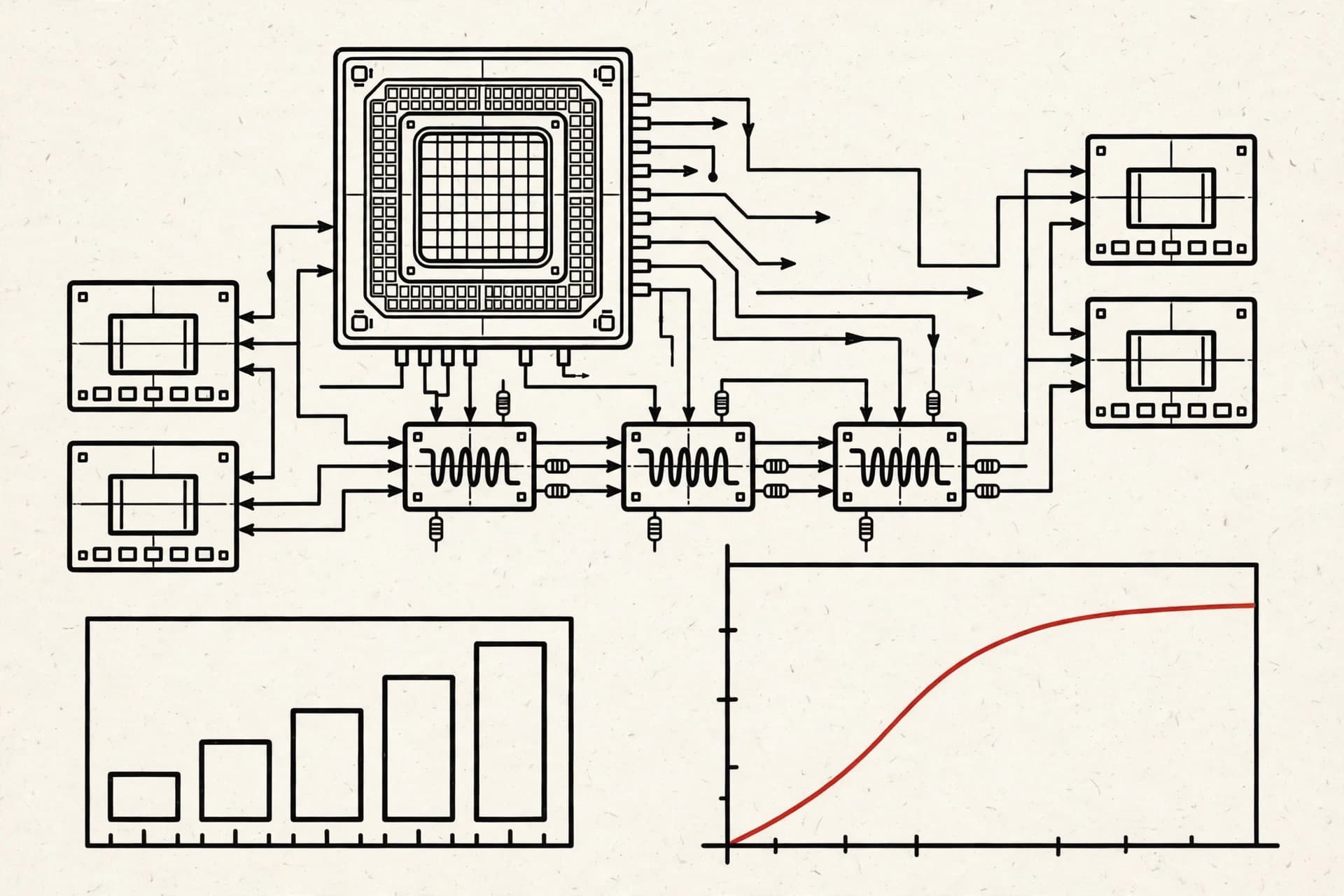
It helps to know how performance scales with power, because it sets expectations. Going from a low TGP to a mid-range TGP usually buys the biggest jump: the GPU moves from heavily power-limited clocks up into a more comfortable part of its curve. Going from an already-high TGP to an even higher one still helps, but each extra watt buys fewer extra frames. The chip is efficient in the middle of its voltage curve and greedy at the top.
Real measured numbers tell this story clearly. Published 3DMark runs comparing stock and raised limits show the scale of what extra TGP can unlock: an RTX 4090 Laptop scored 21,007 stock in Time Spy Graphics versus 25,564 with the limit raised; an RTX 5070 Ti Laptop scored 17,225 versus 20,858; an RTX 5090 Laptop scored 5,899 versus 9,072 in Steel Nomad; an RTX 5080 Laptop scored 4,854 versus 7,338. That is roughly 30% more GPU performance in 3DMark — the kind of gain you would normally only get by buying a whole tier of GPU higher.
The other side of the curve is worth stating plainly: a 10% power increase rarely gives a 10% frame-rate increase. The chip spends most of the extra watts pushing slightly higher clocks in the inefficient part of its voltage curve. That is still a win — a consistent 15–25% uplift is transformative in practice — but it is not magic, and anyone promising linear scaling is selling you something.
How to find your laptop's actual TGP
Before you can do anything about the limit, you need to know what it is. Three reliable methods:
- GPU-Z. Open the Advanced tab, select the NVIDIA BIOS section, and look at the board power limits. You will see the default limit and the maximum the firmware allows. This is the most direct answer.
- HWiNFO while gaming. The GPU power draw sensor shows the actual live wattage under load. If it flatlines at a round number like 115 W while the GPU still has thermal and frequency headroom, you have found your TGP ceiling in action.
- The manufacturer's spec page. Most laptop makers list the graphics TGP next to the GPU model in the detailed specs. Notebook review sites that test laptops also publish it. If the page just says "RTX 4060" with no wattage, that is itself information — it often means the TGP is on the lower side.
How the limit is set — and how it can be changed
On NVIDIA laptops, the power ceiling is enforced through the driver and firmware power policy. It is not a physical resistor; it is a number in software, which is why it can be changed without touching hardware. Tools that only adjust clocks — MSI Afterburner is the well-known example — work within the limit the driver allows. They can shift clocks, but they cannot raise the laptop GPU's power ceiling itself. NvpwrControl changes the limit itself.
The process works through the NVIDIA driver directly, never by flashing the GPU's VBIOS. Before any write, NvpwrControl checks your GPU, PCI IDs, driver version and VBIOS against the known power policy, and backs up the driver settings. The workflow is: set the MAX limit, save, reboot; then set the CURRENT runtime limit while the GPU is idle. Limits adjust in 5 W steps, which is deliberate — small steps make it easy to find the point where your particular cooling runs out of headroom. Validated ranges are known per model: RTX 50 series laptops from 175 W to 250 W on the 5090 and 5080, 140 W to 180 W on the 5070 Ti, 115 W to 140 W on the 5070, 5060 and 5050; RTX 40 series from 150 W to 250 W on the 4090, 150 W to 225 W on the 4080, 120 W to 150 W on the 4070 and 4060, and 115 W to 140 W on the 4050. RTX 30 and RTX 20 laptops are supported experimentally.
There is also an auto-reapply option that re-sets the limit after things like MSI Center mode switches change power policies underneath you (it triggers on a kernel event with a 1–10 s delay, with no CPU in between). And Reset all returns everything to stock and removes the override and autostart — so experimenting with a higher TGP is not a one-way trip.
The honest risk section
Everything above has a price, and any article about raising power limits owes you this part unvarnished:
- Heat. More watts become more heat, not just in the GPU die but in the GDDR memory, the voltage regulators and the cooling system. Laptops have limited thermal headroom by design. Monitor GPU temperature and hotspot in HWiNFO or GPU-Z, and back off if temperatures climb.
- The adapter. Your power brick must supply the GPU and CPU wattage together. If the combined draw exceeds what the adapter can deliver, the laptop will throttle — or quietly drain the battery while plugged in. Check the wattage printed on your adapter against your new numbers.
- Warranty. Whether this affects warranty depends on your laptop maker, not on the software. The change is fully reversible, but running hardware beyond its stock configuration may affect a warranty claim. Check your manufacturer's terms first.
- Steps, not leaps. Raise the limit in 5 W steps and validate stability and temperatures at each step before going further. Telemetry for clocks, voltage, power, temperature, hotspot, P-states and rails is there to be used.
TGP is the quiet number that decides how your laptop actually performs. Now you know what it means, where to find it, and what happens when it moves.
Notes — Questions this entry raises
What does TGP mean on a laptop GPU?
TGP stands for Total Graphics Power. It is the total power budget allocated to the GPU subsystem on a laptop — the graphics die, the GDDR memory, and the losses in the voltage regulators that feed them. Two laptops with the same GPU model can have different TGPs, which is why the same chip benchmarks differently in different machines.
What is NVIDIA Dynamic Boost?
Dynamic Boost is an automatic system that shifts unused power from the CPU to the GPU (and back) depending on the workload. It typically adds up to around 15 W on top of the GPU's base TGP when the CPU has headroom. It happens in real time, many times per second, and requires no input from you — but it also means your 'official' TGP and the number you see under load are not always identical.
Why does the same RTX 4060 laptop GPU perform differently in two laptops?
Because the TGP is set by the laptop maker, not by NVIDIA alone. One manufacturer may give the RTX 4060 a 115 W ceiling with a bigger cooler and adapter, while another ships the same chip at 100 W in a thinner chassis. More TGP means the GPU can hold higher clocks for longer, so the 115 W machine can benchmark noticeably faster than the 100 W one with the same silicon.
How do I check my laptop GPU's TGP?
The quickest way is GPU-Z: open the Advanced tab and look at the board power limits, which show the default and maximum allowed power. HWiNFO can report live GPU power draw while you game, which tells you whether the card is actually hitting its limit. For the official figure, check your laptop maker's spec page — it usually lists the graphics TGP next to the GPU model.
Can I raise my laptop GPU's TGP?
On NVIDIA laptops the TGP ceiling is set in the driver and firmware power policy, and it can be raised with driver-level tools. NvpwrControl does exactly that: it raises the laptop GPU's power limit in 5 W steps after checking your GPU, PCI IDs, driver and VBIOS against the known power policy, and backing up the driver settings first. It never flashes the VBIOS, and Reset all returns everything to stock.
Is raising the TGP safe?
The change itself is software and fully reversible, but it has real physical consequences. More power means more heat across the GPU, memory and voltage regulators, and your adapter must supply the GPU and CPU wattage together — an undersized adapter will throttle or drain the battery while plugged in. Warranty depends on your laptop maker. Raise the limit in 5 W steps and monitor temperatures in HWiNFO or GPU-Z.
Table — Keep reading