Why Your RTX 5080 Laptop Only Draws 175W (and What Unlocks the Rest)
Your RTX 5080 laptop stops at 175W even under full load. Here is why NVIDIA caps it there, what the extra 75W of headroom is, and how to unlock it safely.
By NvpwrControl Team · RTX 5080 laptop · TGP · power limit · laptop GPU · GPU unlocking
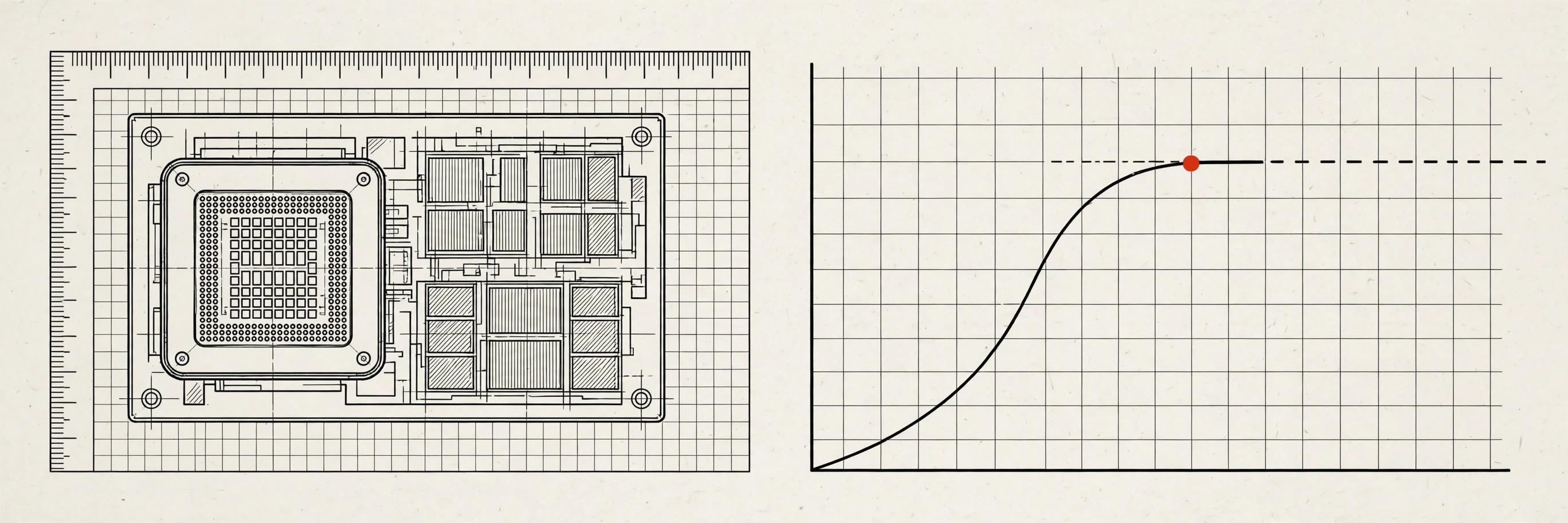
You bought a flagship laptop with an RTX 5080 inside, fired up a demanding game, and watched the power draw settle at 175W — and stay there. Temperatures look fine. The fans have room to spare. Nothing is wrong, and yet the GPU refuses to pull another watt.
That 175W wall is not a bug, a faulty adapter, or a cooling problem. It is the stock power limit NVIDIA set for this GPU, and it is enforced whether your laptop could handle more or not. This article explains why the cap exists, what the 75W of headroom behind it actually is, and what your options are if you want to use it.
What 175W actually means: TGP, not the whole laptop
The 175W figure is the RTX 5080 Laptop's stock Total Graphics Power (TGP). TGP is the power budget NVIDIA assigns to the graphics subsystem — the GPU die, its memory, and the supporting circuitry on the graphics board. It is not the laptop's total power draw. Your CPU, screen, storage, and everything else draw power on top of it, which is why your power adapter is rated well above 175W.
Two things make TGP confusing in practice. First, the number on the spec sheet is a ceiling, not a constant. In light workloads the GPU may draw 40W or 80W. It only pushes toward 175W when a game or benchmark actually demands it. Second, the ceiling is enforced by the driver, not by the hardware's physical limits. The silicon can draw more — the power policy simply will not let it.
That distinction matters, because it means the cap is a policy decision, not a law of physics. The GPU in your laptop is not running at its maximum capability at 175W. It is running at the maximum its stock power policy allows.
Why NVIDIA caps the RTX 5080 laptop at 175W
Laptop GPUs live in a thermal envelope that desktop cards never have to respect. A desktop RTX 5080 has a large cooler, open airflow, and a power supply with hundreds of watts to spare. A laptop has a cooling system a few centimetres thick, shared between the CPU and GPU, inside a chassis that also has to be portable and quiet enough to sit on a desk.
NVIDIA sets the stock TGP so that the GPU performs reliably across the whole range of laptops that carry it — from thick desktop-replacement machines with serious cooling to thinner models where the same GPU shares a heatpipe layout with a hot CPU. A single stock number has to be safe for all of them, so it is set conservatively. Your particular laptop may have far more cooling capacity than the number assumes, but the stock limit does not know or care about your specific machine.
There is also the question of what else the power budget must cover. Dynamic Boost lets NVIDIA shift power between the CPU and GPU depending on the workload — a game that leans on the GPU gets more graphics power, while a CPU-heavy task gets more processor power. The 175W figure is the graphics side of that shared budget, and the system juggles it in real time. So even the "175W" you see is not always a fixed wall in every workload; it is the top of the range the driver will allow the graphics side to reach.
The practical upshot: the cap exists to keep every RTX 5080 laptop stable and within its thermal design, regardless of how good or bad that laptop's cooling is. It is a one-size-fits-all safety margin, and on a well-cooled laptop it leaves genuine performance on the table.
What the extra 75W buys you
The validated power range for the RTX 5080 Laptop runs from 175W stock up to 250W maximum. That is 75W of headroom — more than 40% above the stock ceiling — that the GPU never touches out of the box.
What does that headroom turn into? The clearest public data point comes from 3DMark Steel Nomad, where an RTX 5080 Laptop scored 7,338 unlocked versus 4,854 at stock. That is roughly 50% higher in that benchmark, a large jump that reflects how much of the GPU's capability the stock cap was holding back. Real games will not all scale that way — some titles are limited by the CPU, by memory, or by the game engine itself, and in those cases extra watts buy little. But in GPU-bound games at high settings, the extra power translates into higher sustained clocks and higher frame rates, because the GPU stops hitting its power ceiling mid-scene.
It is worth being precise about what "unlocking" means here. Raising the power limit does not overclock the GPU by itself. It removes the ceiling that was forcing the GPU to throttle its clocks down to stay under 175W. The GPU then boosts as high as its own clock management and temperatures allow, within the new, higher limit. That is why the gains can be large in benchmarks that push the GPU hard, and modest in games that never approached the old ceiling in the first place.
How to check what your 5080 laptop actually draws
Before changing anything, find out whether the power limit is actually what is holding you back. The check is quick and free.
Download HWiNFO64, run it in sensors-only mode, and look for the GPU Power sensor while you play a demanding game or run a benchmark. If the reading flatlines at 175W while GPU temperature and hotspot temperature still have headroom, you are power limited: the GPU wants to draw more and the policy will not let it. If power draw is well under 175W but temperatures are high and clocks are dropping, you are thermally limited instead, and raising the power limit would only make the heat worse.
GPU-Z shows the same information in a simpler view, including the reason the GPU is throttling at any given moment. Either tool will do. The point is to confirm the diagnosis before reaching for a fix — many laptops that feel slow are limited by heat or by the CPU, not by the GPU power ceiling, and no power-limit change will help those.
What actually unlocks the rest
Here is where a lot of owners get stuck. MSI Afterburner is the tool most people reach for first, and it is excellent at what it does — but raising a laptop GPU's power ceiling is not what it does. Afterburner can shift clock speeds and fan curves, but it cannot change the driver-level power policy that enforces the 175W cap. You can push the core clock slider as far as it goes and the GPU will still hit 175W and throttle back down.
Changing the limit itself requires working with the NVIDIA driver directly. That is what NvpwrControl does: it is a portable Windows app that raises the power limit through the driver, without ever flashing the VBIOS. The flow is straightforward — set the maximum limit, save, reboot, then set the current runtime limit while the GPU is idle. It backs up your driver settings before changing anything, checks the GPU, PCI IDs, driver, and VBIOS against the live power policy before any write, and the limits adjust in 5W steps, so you can raise the ceiling gradually instead of jumping straight to 250W. If you ever want to go back, Reset All returns everything to stock and removes the override and autostart.
An auto-reapply option re-sets the limit after mode switches in tools like MSI Center, with a short delay of one to ten seconds, so the limit survives the laptop switching performance profiles. Telemetry covers clocks, voltage, power, temperature, hotspot, P-states, and power rails, so you can watch exactly what the extra watts are doing.
The important thing is not which tool you use, but that you understand the mechanism: the limit lives in the driver policy, so only a driver-level change can move it. Clock tools and cooling pads cannot.
The honest risks
Raising a power limit is not free performance, and any honest guide has to say so plainly.
More power means more heat — not just on the GPU die, but on the VRAM and the voltage regulators feeding it, and on the cooling system that has to move all of that heat out of a thin chassis. A laptop that handled 175W comfortably may run noticeably hotter at 225W or 250W, and sustained high temperatures are what wear components down over time.
Your power adapter matters too. It must be able to supply the GPU plus the CPU at the same time. If the combined draw exceeds what the adapter can deliver, the laptop will throttle, or in some cases slowly drain the battery even while plugged in. Check your adapter's wattage rating against the combined load before raising the limit.
Warranty is the third question, and the honest answer is that it depends on your laptop maker. Some manufacturers treat driver-level power changes as a warranty issue, others do not. Check your maker's policy before you change anything, and keep in mind that a reset to stock is available if you need it.
The practical advice is boring but correct: raise the limit in small steps, watch temperatures with HWiNFO or GPU-Z, and stop when temperatures climb faster than performance does. If you are not comfortable monitoring your own hardware, the stock 175W is a perfectly good place to stay.
Should you raise it?
If your HWiNFO readings show the GPU pinned at 175W with thermal headroom to spare, and your laptop's cooling and adapter can handle more, the 75W of headroom behind the cap is real and usable. The Steel Nomad numbers show what it can be worth in a benchmark that pushes the GPU hard, and in GPU-bound games the difference is visible.
If your laptop already runs hot at stock, or your adapter is barely rated for the combined CPU and GPU load, leave the cap alone and look at cooling or power delivery first. The ceiling is not the problem in that case, and raising it would only make the real problem worse.
Either way, the 175W number is now something you understand rather than something that just happens to your laptop. It is a policy, set for the weakest laptop in the range, and on a well-cooled machine it is a conservative one. Whether you use the headroom behind it is a judgement call about your hardware, your temperatures, and your tolerance for risk — but it is a call you can now make with the facts in front of you.
Notes — Questions this entry raises
Why does my RTX 5080 laptop only draw 175W?
175W is the stock Total Graphics Power (TGP) limit NVIDIA sets for the RTX 5080 Laptop. It is a firmware-level ceiling, not a defect and not something your cooling or power adapter is causing. The GPU will not exceed it no matter how much thermal headroom you have, unless the limit itself is raised.
Can the RTX 5080 laptop go above 175W?
Yes. The validated range for the RTX 5080 Laptop is 175W stock up to 250W maximum when the power limit is raised through the NVIDIA driver. That is 75W of extra headroom sitting behind the stock cap.
How much faster is an RTX 5080 laptop at 250W?
In published 3DMark Steel Nomad results, an RTX 5080 Laptop scored 7,338 unlocked versus 4,854 at stock — roughly 50% higher in that benchmark. Real game gains vary by title and by how much of the extra power the game can actually use.
Is raising the RTX 5080 laptop power limit safe?
It carries real risks you should weigh honestly. More power means more heat on the GPU, VRAM and voltage regulators, and your power adapter must be able to supply the GPU plus the CPU or the laptop will throttle or drain its battery. Warranty depends on your laptop maker. Raise the limit in small steps and monitor temperatures with HWiNFO or GPU-Z.
Why can't MSI Afterburner raise my RTX 5080 laptop past 175W?
MSI Afterburner can shift clock speeds, but it cannot raise a laptop GPU's power ceiling — that ceiling lives in the driver-level power policy. Changing the limit itself requires a tool that works with the NVIDIA driver directly, such as NvpwrControl, which never flashes the VBIOS.
How do I check how much power my RTX 5080 laptop is actually drawing?
Run HWiNFO64 in sensors-only mode and watch the GPU Power sensor while gaming or running a benchmark. If it flatlines at 175W while temperatures still have headroom, you are hitting the power limit, not a thermal limit.
Table — Keep reading