Dynamic Boost Explained: How NVIDIA Shares Power Between CPU and GPU
Dynamic Boost shifts power between your laptop's CPU and GPU on the fly. Learn how it works, when it helps, and what it means for your gaming performance.
By NvpwrControl Team · Dynamic Boost · NVIDIA · TGP · laptop GPU · power limit · gaming laptop
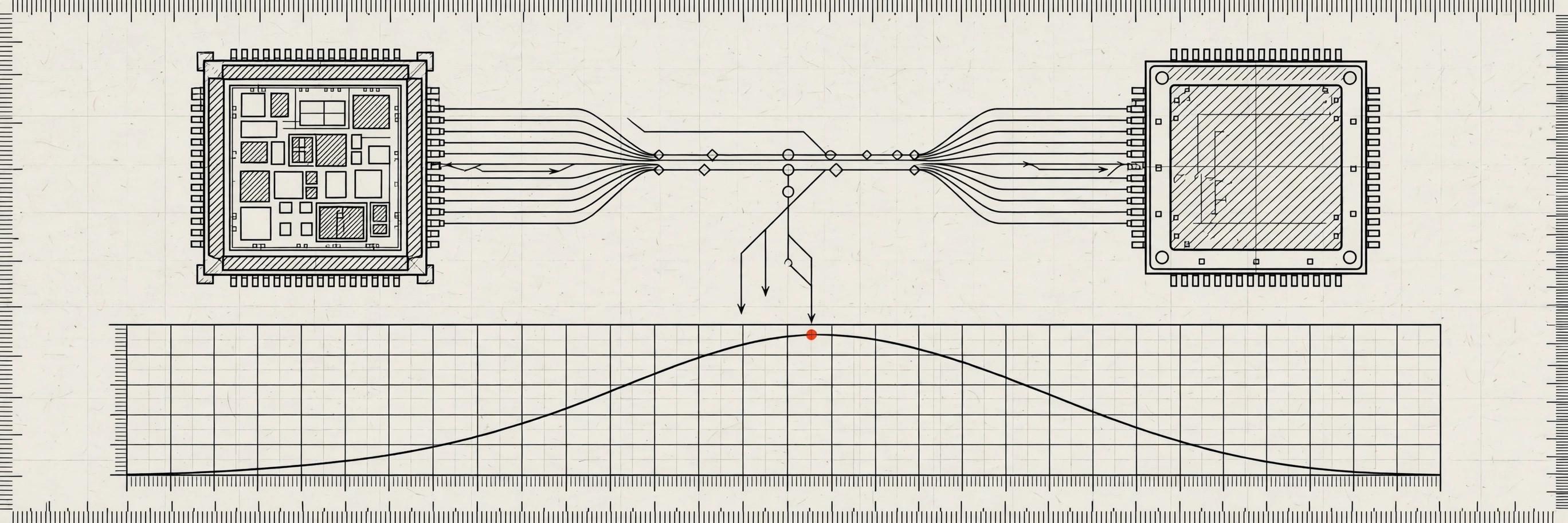
If you have ever watched a monitoring overlay while gaming on a laptop, you have probably seen the GPU's wattage bounce around: 120W one second, 140W the next, then back down again. The frame rate holds steady, the temperatures look fine, and yet the power number refuses to sit still. That movement is not a bug. In most cases, it is NVIDIA Dynamic Boost doing exactly what it was designed to do: moving power back and forth between the CPU and the GPU, second by second, to wherever it does the most good.
Understanding Dynamic Boost matters because it explains a lot of confusing laptop behaviour — why two laptops with the same GPU can perform differently, why your GPU sometimes runs below its advertised wattage, and why raising a power limit changes the whole equation. This guide explains how it works, when it helps, when it does not, and how it fits into the bigger picture of laptop GPU power limits.
The shared power budget problem
A gaming laptop has one power adapter and one cooling system serving two hungry chips: the CPU and the GPU. The adapter can only deliver so many watts in total, and the cooling system can only remove so much heat. The laptop's designers therefore set a total budget — a combined ceiling for CPU plus GPU — and the two chips have to live inside it together.
In the old days, that budget was split rigidly. The CPU got its fixed share, the GPU got its fixed share, and neither could borrow from the other. That was simple, but wasteful. Games rarely stress both chips equally at the same moment. A GPU-heavy scene in a fast-paced shooter leaves the CPU with power sitting unused, while the GPU is capped and could do more with it. A CPU-heavy moment — a busy simulation, a loading sequence, a game with heavy physics — flips the situation around.
Dynamic Boost exists to fix that waste. Instead of fixed slices, the split becomes fluid.
How Dynamic Boost works
Dynamic Boost is a feature built into NVIDIA's laptop GPU platform, managed by the GPU driver together with the laptop's firmware. It continuously monitors what the CPU and GPU are actually doing and rebalances power between them in real time.
The logic is straightforward:
- When the GPU is the bottleneck, and the CPU is cruising well below its power allocation, Dynamic Boost shifts the spare power to the GPU. The GPU can boost to higher clocks and hold them longer, which is where extra frames come from.
- When the CPU is the bottleneck, the power shifts back. The CPU gets what it needs for a demanding moment, and the GPU gives up some of its headroom.
- When both are loaded, the split settles somewhere in the middle, governed by the laptop's total budget and thermal limits.
The total power the laptop draws does not change. Dynamic Boost is a redistribution mechanism, not a power increase. Think of it as a smart valve on a shared pipe rather than a bigger pipe.
This is also why the GPU wattage number in your overlay moves around. It is responding to the workload in real time. A quiet corridor in a game might let the GPU take most of the budget; a crowded battle with lots of AI and physics hands some of it back to the CPU.
Dynamic Boost and TGP: what the numbers mean
Every laptop GPU has a Total Graphics Power (TGP) rating — the maximum power the GPU subsystem is designed to draw, including the GPU chip itself and its memory. When you see a laptop advertised as having an RTX 4070 at 140W, or an RTX 4090 at 150W, that number is the TGP. It is the GPU's slice of the budget, not the laptop's total.
Dynamic Boost complicates the headline numbers a little, because manufacturers sometimes quote TGP with Dynamic Boost included and sometimes without. A GPU listed at "140W" might be a 115W base TGP plus Dynamic Boost headroom, or a straight 140W design. The only way to know for sure is to check the specific laptop model's specifications or measure it yourself with a tool like HWiNFO or GPU-Z while gaming.
What matters for performance is the power the GPU can actually sustain in a real game, and that is where Dynamic Boost helps: it pushes the GPU toward the top of its TGP range more often, instead of leaving it stuck at a lower average when the CPU is idle.
It also matters because the GPU's TGP is a ceiling, not a guarantee. Dynamic Boost can move power around inside the laptop's budget, but it cannot push the GPU past its TGP. If your GPU is capped at 115W, no amount of clever sharing will take it to 140W — the ceiling itself has to change.
When Dynamic Boost helps — and when it doesn't
Dynamic Boost shines in games where the GPU is clearly the limiting factor and the CPU has headroom to spare. That covers a large share of modern gaming: high-resolution, high-detail scenes where the GPU is working flat out and the CPU is waiting on it. In those moments, every watt handed to the GPU turns into performance.
It helps less in a few situations:
- CPU-bound games. In strategy games, simulations, and some esports titles running at very high frame rates, the CPU is the bottleneck. Shifting power to the GPU does nothing because the GPU is already waiting on the CPU.
- Both chips fully loaded. When the CPU and GPU are both maxed out, there is no spare power to redistribute. The split is a zero-sum game, and the laptop is already at its total budget.
- Thermal limits. Dynamic Boost cannot help if the cooling system is already saturated. If the laptop is hot and throttling, the total budget shrinks regardless of how it is divided.
- On battery. Unplugged, the laptop runs a much smaller total budget. There is less power to share in the first place, which is a big part of why gaming laptops slow down so much on battery.
In short, Dynamic Boost is an efficiency feature. It makes the power you already have work harder. It does not create power that is not there.
Dynamic Boost vs. a higher power limit
This distinction is the one most often misunderstood, so it is worth stating plainly: Dynamic Boost and raising the power limit are two different things that solve two different problems.
Dynamic Boost answers the question "how should we divide the power we have?" Raising the power limit answers the question "how much power can the GPU use at all?" A laptop with an RTX 4090 capped at 150W can use Dynamic Boost to make sure the GPU gets its full 150W whenever the CPU does not need it. But it can never exceed 150W, no matter how much headroom the CPU has. The ceiling is the ceiling.
That is where a driver-level tool comes in. NvpwrControl raises NVIDIA laptop GPU power limits by working with the NVIDIA driver directly — it never flashes the VBIOS. For the RTX 4090 Laptop, the validated range runs from 150W stock up to 250W; for the RTX 4080, from 150W to 225W; and for the RTX 4070 and 4060, from 120W to 150W. Raising the ceiling in 5W steps gives Dynamic Boost a larger budget to share in the first place, so the GPU can sustain higher clocks in GPU-heavy scenes instead of topping out early.
The two work together, not against each other. A higher limit raises the roof; Dynamic Boost makes sure the power under that roof goes where it is needed.
The honest risks
Raising a power limit is not free performance, and it would be dishonest to pretend otherwise. More power means more heat — not just on the GPU die, but on the memory, the voltage regulators, and the cooling system as a whole. The power adapter has to supply the combined CPU and GPU wattage, or the laptop will throttle or drain the battery even while plugged in. And warranty coverage depends on the laptop maker, so check your manufacturer's policy before changing anything.
The sensible approach is the same one that applies to any power change: raise in small steps, monitor with HWiNFO or GPU-Z, and watch temperature, hotspot, and power draw while gaming. If temperatures climb or the adapter cannot keep up, step back down. Dynamic Boost will keep doing its job inside whatever ceiling you set — it just has more room to work with.
How to see Dynamic Boost working on your laptop
You do not need special tools to observe it, just a monitoring overlay and a game that shifts between CPU-heavy and GPU-heavy moments:
- Open HWiNFO or GPU-Z and watch the GPU power draw sensor.
- Play a game with varied scenes — an open world with quiet exploration and busy combat works well.
- Watch the wattage move as the scene changes. Spikes during GPU-heavy moments and dips during CPU-heavy ones are Dynamic Boost reallocating in real time.
- Compare the sustained wattage against your GPU's TGP. If it regularly sits well below TGP while temperatures are fine, the CPU may be taking the larger share — or the laptop's total budget is the real constraint.
If you want to experiment with the split, many laptops let you choose a performance mode in the manufacturer's software. A "performance" or "turbo" mode typically gives the GPU a larger share; a "balanced" mode splits more evenly. Try both in the same game and compare frame rates, not just wattage numbers.
The bottom line
Dynamic Boost is one of the smartest pieces of engineering in modern gaming laptops, and it is easy to overlook precisely because it works invisibly. It takes the power your laptop already has and puts it where it earns the most frames, moment by moment. It explains the wandering wattage in your overlay, the performance gap between two laptops with the same GPU, and why a GPU rarely sits at exactly its advertised TGP.
But it has a hard boundary: it can only share the power that exists. When the GPU's own ceiling is the bottleneck, no redistribution will fix it — only a higher limit will. That is the point where tools like NvpwrControl come in, raising the ceiling itself in 5W steps through the driver, so Dynamic Boost has a bigger budget to share. Used together, with honest monitoring and small steps, they are how a laptop GPU gets the power it was actually built to use.
Notes — Questions this entry raises
What is NVIDIA Dynamic Boost?
Dynamic Boost is an NVIDIA technology that automatically shifts power between the CPU and GPU inside a laptop's shared power budget. When the CPU has power to spare, Dynamic Boost hands that headroom to the GPU so it can run faster; when the CPU needs more, the power shifts back. The total power the laptop can deliver does not change — it is just allocated more intelligently moment to moment.
Does Dynamic Boost increase my laptop's total power limit?
No. Dynamic Boost only redistributes power within the laptop's existing total budget. It cannot raise the GPU's maximum power limit or the laptop's overall ceiling. To actually raise the GPU power limit itself, the limit has to be changed — for example with a driver-level tool like NvpwrControl, which works with the NVIDIA driver rather than flashing the VBIOS.
Why does my GPU wattage change while gaming?
Because the CPU and GPU share one power and thermal budget in most gaming laptops. Dynamic Boost moves power to whichever chip needs it most at any given moment, so the GPU's wattage rises and falls as the workload shifts between CPU-heavy and GPU-heavy scenes. Seeing the number move is normal and expected, not a fault.
Can I turn Dynamic Boost off?
Usually, yes. Most gaming laptops expose a MUX switch or a performance mode in the manufacturer's control software, and some BIOS or control-panel settings let you disable Dynamic Boost. Turning it off locks each chip to its own fixed share of the budget, which can help in CPU-heavy work but usually costs a little gaming performance.
Does Dynamic Boost work on battery?
On battery, laptops run far more conservative power budgets to protect battery life, so Dynamic Boost has much less headroom to work with. The GPU and CPU both get less power overall, which is why gaming laptops get noticeably slower unplugged. For full performance, game on the charger.
Is Dynamic Boost the same as overclocking?
No. Dynamic Boost changes how existing power is shared, while overclocking pushes clocks above stock. Dynamic Boost works inside the manufacturer's power limits; overclocking and power-limit raising change the limits themselves. The two can stack — a higher power ceiling gives Dynamic Boost more room to share — but they are different mechanisms.
Table — Keep reading