RTX 4070 Laptop: Why the Same GPU Is Fast in One Laptop and Slow in Another
Two RTX 4070 laptops can perform very differently. The reason is TGP — the power limit set by the laptop maker — plus cooling, adapter size and Dynamic Boost.
By NvpwrControl Team · RTX 4070 · TGP · laptop GPU · power limit · gaming laptop · Dynamic Boost
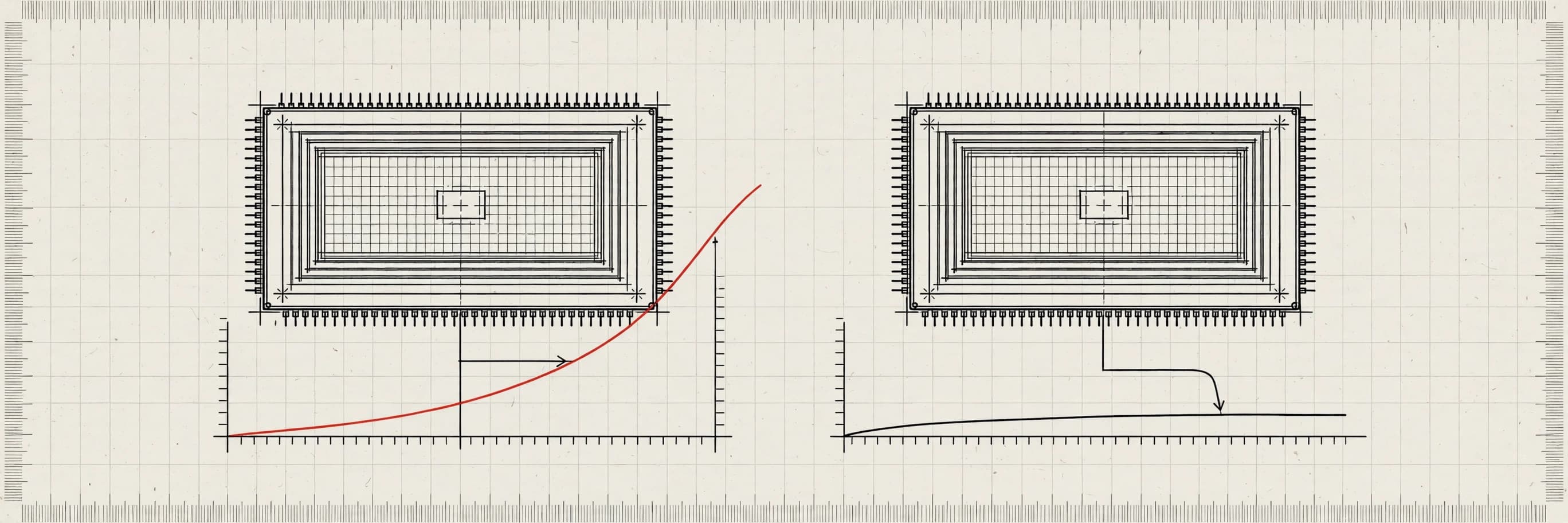
Two laptops. Same box sticker: "NVIDIA GeForce RTX 4070 Laptop GPU". Same 8 GB of video memory, same feature list, same price bracket — and yet one of them is clearly faster in games than the other. If you have ever compared benchmarks and wondered whether a review was wrong, it probably was not. The GPU name is only half the story. The other half is the power limit, and the laptop maker — not NVIDIA — decides it.
This is the single most confusing thing about buying a gaming laptop, and it is worth understanding before you spend your money.
The same chip, a different power budget
Every laptop GPU has a Total Graphics Power (TGP) limit: the maximum power the GPU subsystem is allowed to draw. The chip itself is the same silicon in every RTX 4070 laptop. What changes is how much power the laptop maker lets it use.
NVIDIA's stock power policy for the RTX 4070 Laptop sits around 120 W, and that is the figure many thin and mid-range machines ship with. But a well-cooled, thick-chassis laptop can be given a higher ceiling — driver-level tools have validated raising the RTX 4070 Laptop to 150 W. Between those two points there is a whole range of factory configurations, and the laptop maker picks where on that range each model lands based on the cooling system, the chassis thickness, the power adapter and the price point.
The result: two machines that are both honestly sold as "RTX 4070 laptops" can have meaningfully different performance ceilings. The GPU name tells you the silicon. The TGP tells you how hard that silicon is allowed to work.
What TGP actually does to performance
A GPU's clock speed is not fixed. Under load, the card boosts its clocks as high as it can within its power and temperature limits. When the power limit is the binding constraint — which it usually is in a laptop — the card settles at whatever clock speed fits inside the wattage budget.
Give the same chip 120 W and it holds one clock speed. Give it 150 W and it can hold a higher one, for longer, without hitting the ceiling. That is why the higher-TGP machine pulls ahead in sustained workloads: long gaming sessions, ray-traced scenes, high-resolution rendering. The gap is not there because one GPU is "better silicon" — it is there because one laptop gave the chip more room to breathe.
This is also why the gap shows up more in some games than others. In a light esports title at 1080p, the GPU may never approach its power limit, and both machines perform the same. In a demanding AAA game at 1440p, the GPU is pinned at its ceiling the whole time, and the higher-TGP machine is clearly faster. Benchmarks that stress the GPU hard — 3DMark Time Spy and Steel Nomad, for example — expose the difference most clearly.
It is not only TGP: cooling, adapter and Dynamic Boost
TGP is the headline, but three other factors decide how much of that power budget turns into real performance.
Cooling. A power limit is only useful if the cooler can remove the heat. A laptop with a 150 W ceiling and a cooling system that can only handle 120 W of heat will thermal-throttle before it ever uses the extra power. This is why the fastest RTX 4070 laptops are usually the thickest ones: bigger fans, more heat pipes, more room for air. A thin-and-light machine with a high TGP on paper can end up slower in practice than a thicker machine with a lower TGP and a cooler that keeps up.
The power adapter. The adapter has to supply the GPU and the CPU at the same time. If the adapter cannot deliver enough total wattage, the system throttles or drains the battery even while plugged in. Before chasing a higher GPU power limit, check the adapter's rated wattage and whether it covers the GPU plus the CPU under full load. This is the most commonly overlooked bottleneck in laptop performance.
Dynamic Boost. NVIDIA's Dynamic Boost shifts unused power between the CPU and the GPU in real time, many times per second. When the CPU has headroom, the GPU gets more power; when the CPU is busy, the GPU gives some back. That means the TGP number on a spec sheet is not the whole story — the actual power the GPU sees during a game moves around depending on what the CPU is doing. It also means two laptops with the same listed TGP can still behave differently if their CPU and cooling designs differ.
How to check before you buy
If you are shopping for an RTX 4070 laptop, do not stop at the GPU name. Here is the short checklist:
- Find the listed TGP. The laptop maker's spec page usually lists the graphics TGP next to the GPU model. If it is not listed, that is itself a warning sign — the maker may not want you to compare.
- Check the adapter wattage. A machine that advertises a high TGP but ships a small adapter cannot sustain it.
- Read a review that measures power draw. Good laptop reviews run HWiNFO or a similar tool during benchmarks and report the actual sustained GPU wattage. That number is more useful than any spec-sheet claim.
- Look at the chassis. A 15 mm thin machine and a 25 mm thick machine with the same GPU are not the same product, even at the same price.
If you already own the laptop, you can check the number yourself. GPU-Z shows the board power limits under the Advanced tab, and HWiNFO reports live GPU power draw while you game. If the power draw is pinned flat at the limit during a benchmark while temperatures are still reasonable, TGP — not heat — is what is holding the card back.
Can you close the gap?
If your machine shipped with the lower power limit, the gap is not always permanent. On NVIDIA laptops the TGP ceiling is set in the driver and firmware power policy, and it can be raised with a driver-level tool.
NvpwrControl does exactly that: it works with the NVIDIA driver directly to raise the laptop GPU's power limit — for the RTX 4070 Laptop, from 120 W up to 150 W — and it never flashes VBIOS. The flow is simple: set the maximum limit, save, reboot, then set the current runtime limit while the GPU is idle. It backs up the driver settings before changing anything, and a reset returns everything to stock.
But raising the limit is not free performance, and it should be done honestly:
- More power means more heat — on the GPU, the VRAM and the voltage regulators, and on the cooling system that has to remove it. Watch temperatures with HWiNFO or GPU-Z, and raise in steps rather than jumping straight to the maximum.
- The adapter must keep up. If the adapter cannot supply the GPU plus the CPU at full load, the machine will throttle or drain the battery while plugged in. Know your adapter's rated wattage first.
- Warranty depends on the laptop maker. Some makers tolerate power-limit changes; others do not. Check before you commit, and remember that a reset returns the machine to stock.
The honest way to judge the result is to measure it: run the same 3DMark test at the stock limit and again after raising it, on the same machine, in the same conditions. Published 3DMark results for unlocked laptop GPUs show meaningful gains — for example, an RTX 4090 Laptop scored 25,564 in Time Spy Graphics unlocked versus 21,007 at stock, and an RTX 5090 Laptop scored 9,072 in Steel Nomad versus 5,899 at stock, around 30% more GPU performance in 3DMark. Your RTX 4070 will have its own numbers; the point is to measure rather than assume.
What to remember when shopping
The GPU name on the box is a starting point, not a performance guarantee. Two RTX 4070 laptops can be different machines in every way that matters: the power limit, the cooler, the adapter and the chassis. Before you buy, find the TGP, check the adapter wattage, and read a review that measures sustained power draw. And if you already own a machine that shipped with a conservative limit, know that the ceiling is set in software — and that it can be raised, carefully, with the right tool and the right monitoring.
Notes — Questions this entry raises
Why is the same RTX 4070 faster in one laptop than another?
Because the laptop maker sets the GPU's power limit (TGP), and it varies by model. An RTX 4070 laptop can be configured anywhere around a 120 W stock ceiling depending on the chassis, cooling and adapter. More power lets the GPU hold higher clocks for longer, so the higher-TGP machine benchmarks and plays noticeably faster than the lower-TGP one — even though the GPU name on the box is identical.
What TGP does an RTX 4070 laptop have?
It depends on the laptop. NVIDIA's stock power policy for the RTX 4070 Laptop sits around 120 W, and driver-level tools have validated raising it to 150 W. The exact figure for your machine is set by the laptop maker and printed in the spec sheet, so always check the listed TGP — not just the GPU name — before you buy.
Does TGP matter more than the GPU model when buying a gaming laptop?
Often, yes. A higher-tier GPU at a low TGP can be beaten by a lower-tier GPU given a generous power budget. The GPU name tells you the silicon; the TGP tells you how hard that silicon is allowed to work. Check the TGP, the adapter wattage and the cooling design together before deciding.
Can I raise my RTX 4070 laptop's power limit?
Yes, with a driver-level tool. NvpwrControl works with the NVIDIA driver directly to raise the RTX 4070 Laptop's limit from 120 W to up to 150 W — it never flashes VBIOS. Raise in steps, watch temperatures with HWiNFO or GPU-Z, and make sure your adapter can supply the extra wattage. Warranty depends on the laptop maker.
How do I check my RTX 4070 laptop's TGP?
The most reliable source is the laptop maker's spec page, which usually lists the graphics TGP next to the GPU model. On the machine itself, GPU-Z shows the board power limits under the Advanced tab, and HWiNFO reports live power draw while you game — if the GPU is pinned at its limit during a benchmark, TGP is the bottleneck.
Is a 150 W RTX 4070 much faster than a 120 W one?
The gap is real but it is not a fixed percentage — it depends on the game, the resolution and whether the GPU was power-limited in the first place. In general, extra TGP helps most in sustained GPU-heavy workloads where the card would otherwise throttle its clocks. The honest way to measure it on your own machine is to run the same 3DMark test before and after changing the limit.
Table — Keep reading