Why Your Gaming Laptop Gets Slower on Battery (and Power Limits Explained)
Your gaming laptop drops frames the moment you unplug it. Here's why battery power limits kick in, what TGP has to do with it, and how to game on battery.
By NvpwrControl Team · gaming laptop · battery · power limit · TGP · laptop GPU
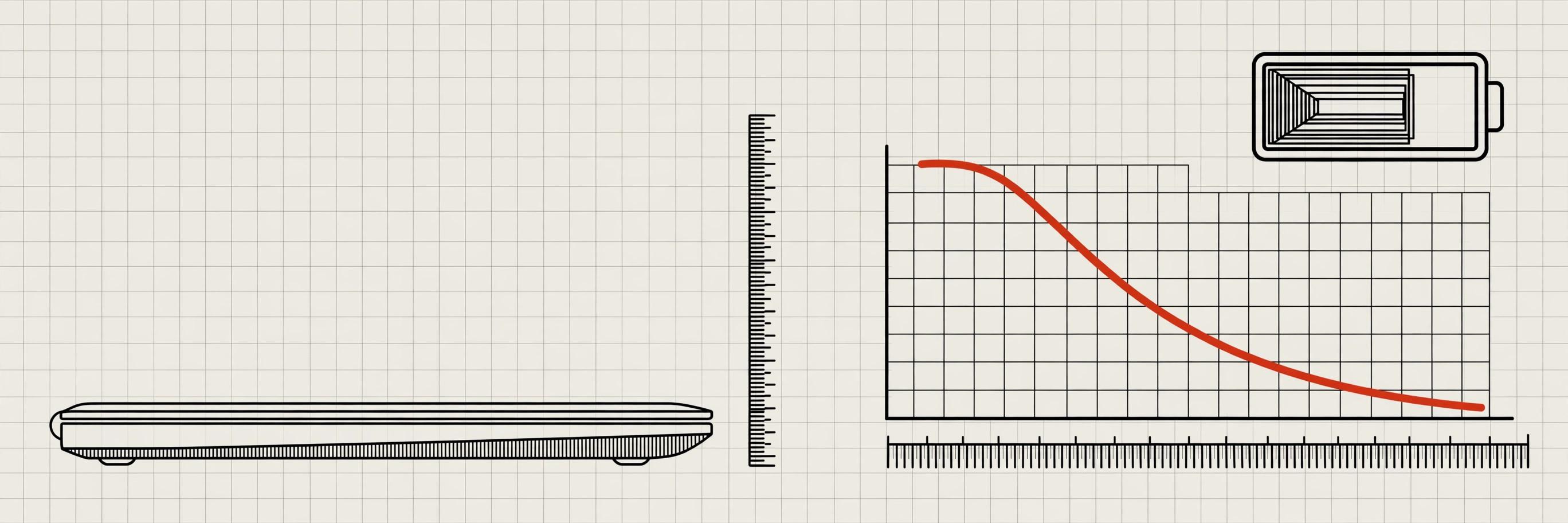
Your gaming laptop runs a game beautifully on your desk. You unplug it to move to the couch, and within seconds the frame rate collapses. The game that was smooth at high settings is now a slideshow at the same settings. Nothing broke. Nothing overheated. The laptop just got slower — and it did it on purpose.
This is one of the most confusing things about owning a gaming laptop, because it feels like a defect. It isn't. It is the power limit system doing exactly what it was designed to do: protecting the battery from a load it was never meant to carry. Once you understand how laptop power limits work, the slowdown makes sense.
The short answer: the limit changes, not the GPU
A laptop GPU's speed is set by its power limit — its TGP, or total graphics power. Give the GPU more watts and it holds higher clock speeds; take watts away and the clocks fall, and the frame rate falls with them.
When the laptop is plugged in, the GPU runs at the TGP the laptop maker set — for example, 120W stock on an RTX 4060 laptop, 140W on an RTX 5070 Ti, or 175W on an RTX 5090 laptop. The moment you unplug, the laptop switches to a different, much lower power budget. The GPU's limit drops, the clocks drop, and the game slows down. The GPU itself hasn't changed. Its allowance has.
This is also why the slowdown is instant rather than gradual. A thermal problem builds up over minutes as heat soaks into the cooling system. A power-limit change happens the instant the power source changes, because the limit is a setting, not a temperature.
Why the battery can't feed a gaming GPU like the wall can
A gaming laptop's power adapter is sized for the worst case: the GPU and CPU drawing heavily at the same time. The adapter must supply the combined GPU and CPU wattage, or the system throttles and the battery starts draining even while plugged in. That is why adapter wattage matters so much on a gaming laptop, and why a laptop with a high-wattage GPU and a small adapter is a bad combination.
The battery has a much smaller job. It is designed to run the laptop for everyday work — browsing, documents, video — and to keep it alive in sleep. It was never designed to feed a GPU and a CPU running flat out at the same time, and pushing past its safe delivery rate means heat, stress, and a much shorter life for the cell.
That is also why the slowdown feels so dramatic. It is not one small change. It is the GPU limit falling, the CPU limit falling, and the two of them competing for a much smaller total, all at once.
What actually happens when you unplug
The sequence is fast and mostly invisible, but it follows the same pattern on nearly every gaming laptop.
First, the power plan changes. Windows switches from its plugged-in performance profile to a battery profile, and the laptop's own firmware applies its battery power limits — set by the laptop maker, and not something you can normally see or change in a settings menu.
Second, the GPU's power limit drops well below its rated TGP. The exact number varies by model and maker, but the effect is the same: the GPU can no longer hold the clock speeds it held on wall power. Frame times get longer, frame rates fall, and in a demanding game the drop can be large enough to make the game feel unplayable at settings that were fine a minute earlier.
Third, the CPU pulls back too. Modern games lean on the CPU for physics, AI, and draw calls, so a CPU running at a lower power limit makes the problem worse. And because Dynamic Boost shares power between the two, a CPU spike can steal watts from the GPU and cause stutters even in a game that seemed stable.
None of this is a malfunction. It is the laptop protecting the battery and keeping the machine usable for hours instead of minutes.
How to tell it's a power limit, not thermals
People often blame heat for the on-battery slowdown, and heat is a real cause of slowdowns — just usually not this one. The way to tell is to watch the numbers while you play, using HWiNFO or GPU-Z, which show power draw, clocks, and temperature live.
If the GPU is drawing far less power than its rated TGP while its temperature is well below the thermal limit, you are power-limited: the GPU has thermal headroom to spare but isn't being given the watts. If instead the temperature is high and the clocks fall as it climbs, that is thermal throttling.
What you can actually do about it
Let's be honest about the options, because the internet is full of bad advice here.
Plug the adapter back in. This is the real answer for full performance. A gaming laptop is a desktop-class machine that happens to have a battery; its full speed is a plugged-in speed. If you want the frame rates you get on your desk, the adapter is part of the machine.
Lower settings and cap the frame rate. If you must play on battery, match the game to the power you actually have. Drop the resolution or the detail settings, and cap the frame rate at something the GPU can hold steadily on battery — a stable lower frame rate feels far better than a high frame rate that stutters. Turn off anything that hammers the CPU, since the CPU is sharing the same small power budget.
Use a balanced power plan and close background apps. Background apps, browser tabs, and sync tools all draw CPU power, and on battery every watt counts. A balanced plan and a clean background give the game the biggest possible share of what is available.
Don't try to raise the power limit on battery. This is the advice that wastes people's time. A higher power limit only helps when there is power available to use. On battery, the limiting factor is the battery itself — raising the ceiling does not raise the floor. Tools that change the GPU's power limit, including NvpwrControl, are for plugged-in use: the app works with the NVIDIA driver to raise the laptop GPU's power limit, in 5W steps, and it only makes sense when the adapter can actually supply the extra watts. NvpwrControl never flashes the VBIOS, it backs up driver settings before changing anything, and Reset All returns everything to stock. But none of that changes what a battery can deliver.
The same honesty applies to the risks. Raising a power limit while plugged in means more heat on the GPU, VRAM, and voltage regulators, and the adapter must be able to supply the combined GPU and CPU wattage or the system throttles and the battery drains. Warranty depends on the laptop maker. Raise in steps, and monitor with HWiNFO or GPU-Z.
Buying advice: check the watts before you buy
If battery gaming matters to you, the time to think about it is before you buy. Two numbers decide how a laptop behaves, plugged in and unplugged:
The GPU's real TGP. The same GPU ships at very different power limits depending on the laptop. An RTX 4060 laptop can be 120W stock with a 150W ceiling, an RTX 4070 120W stock with a 150W ceiling, an RTX 5070 Ti 140W stock with a 180W ceiling, and an RTX 5090 laptop 175W stock with a 250W ceiling. A higher TGP means more performance on wall power — and a bigger drop when you unplug, because the gap between wall power and battery power is larger. A lower-TGP laptop gives up less on battery, because it had less to lose.
The adapter wattage. The adapter must supply the GPU and CPU together. If it can't, the laptop throttles even while plugged in, and the battery slowly drains during heavy gaming. A laptop whose adapter is barely bigger than the GPU's TGP alone is a laptop that will disappoint under load.
Neither number is on the box in big print. Check the laptop maker's spec sheet and independent reviews for the real TGP before you buy — and treat a listing that only says "RTX 4060" with no wattage as a listing hiding the most important number.
The honest summary
Your gaming laptop gets slower on battery because the battery cannot deliver the power the adapter can, so the laptop cuts the GPU's power limit to protect the battery and the hardware. The GPU is fine. The cooling is fine. The power budget is simply smaller, and a smaller budget means lower clocks and fewer frames.
Notes — Questions this entry raises
Why does my gaming laptop get slower when I unplug it?
When you unplug, the laptop switches from wall power to the battery, and the battery cannot deliver as much power as the adapter. The laptop responds by lowering the GPU's power limit (TGP), which forces lower clock speeds and fewer frames per second. It is a power limit, not a fault.
Can I stop my laptop from slowing down on battery?
You cannot fully prevent it — the battery is the bottleneck, and no software can make it deliver more power than it safely can. You can reduce the impact by lowering in-game settings, capping the frame rate, and using a balanced power plan. The real fix for full performance is to plug the adapter back in.
Does raising the GPU power limit help on battery?
No. A higher power limit only helps when there is power available to use. On battery, the limiting factor is the battery itself. Raising the limit with a tool like NvpwrControl is a plugged-in activity — the adapter must be able to supply the combined GPU and CPU wattage, or the system throttles and the battery drains.
How can I tell if my laptop is power-limited or thermally throttled on battery?
Watch the numbers while you play: if the GPU is drawing far less power than its rated TGP while temperatures are well below the thermal limit, you are power-limited. HWiNFO or GPU-Z show power draw, clocks, and temperatures live. Low power draw plus low temperatures points at the power limit; high temperatures with falling clocks points at thermals.
Is gaming on battery bad for the battery?
Gaming on battery draws power hard and drains the charge quickly, which means more charge cycles over time. The laptop's own power limits exist partly to protect the battery. Short sessions at modest settings are fine; long, heavy gaming sessions are what the adapter is for.
What should I check before buying a gaming laptop for battery use?
Check the GPU's real TGP and the adapter wattage, not just the model name. The same GPU ships at very different power limits — for example, an RTX 4060 laptop can be 120W stock with a 150W ceiling, while an RTX 5070 Ti is 140W stock with a 180W ceiling. A bigger adapter also matters: it must supply GPU plus CPU wattage together, or the laptop will throttle even while plugged in.
Table — Keep reading