RTX 4080 Laptop Power Limits: 150W Stock vs 225W Unlocked
An RTX 4080 laptop can ship with a 150W power limit even though the same GPU can run higher. Learn what 150W vs 225W changes, what it does not, and the heat, adapter and warranty risks to check first.
By NvpwrControl Team · RTX 4080 · power limit · TGP · laptop GPU · gaming laptop · overclocking
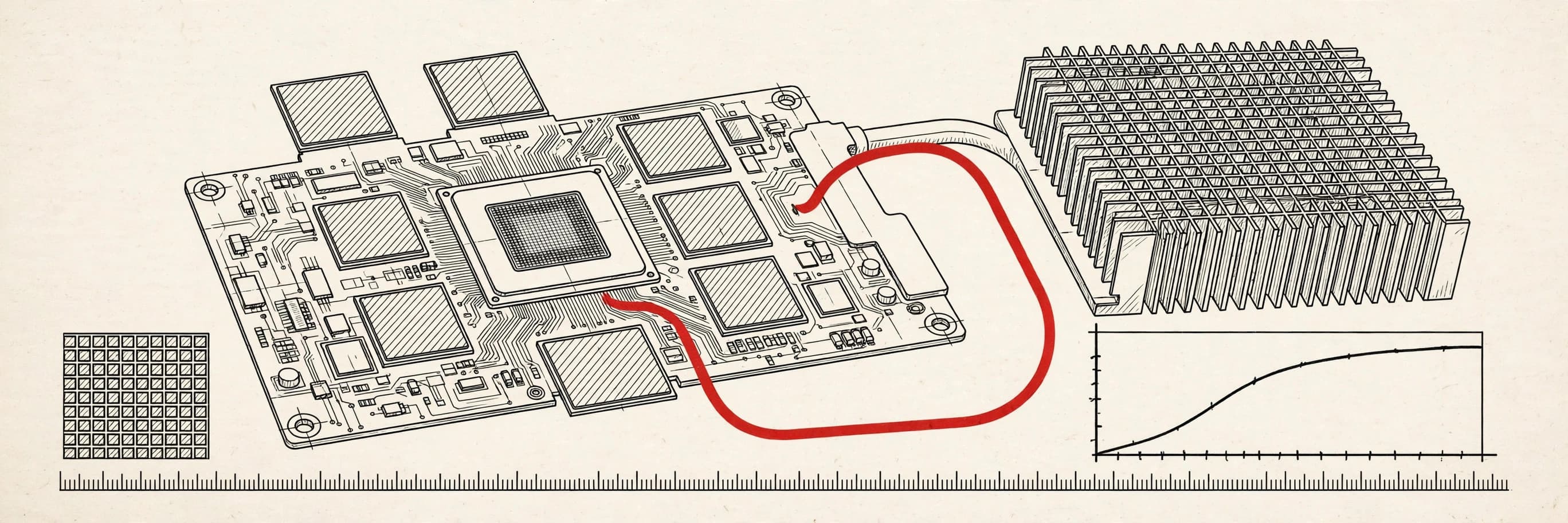
If you own an RTX 4080 laptop, you may have noticed something odd: your GPU shares its name with every other RTX 4080 laptop, yet it does not necessarily run at the same power. One machine might be capped at 150W while another is allowed to draw considerably more. The chip is the same. The difference is the power limit the laptop maker chose, and the cooling and adapter built around that choice.
For the RTX 4080 laptop GPU, the validated range runs from 150W stock to 225W maximum. That 75W gap is the subject of this guide: what the stock limit does, what a higher limit can and cannot do, and the honest risks that come with raising it.
What the 150W stock limit actually means
A laptop GPU power limit, often quoted as TGP (Total Graphics Power), is a budget, not a constant draw. A 150W limit means the GPU is allowed to draw up to 150W. In light work it will draw far less. In a demanding game, it will hit that ceiling and then manage itself to stay under it, usually by lowering clock speeds.
That management is called power throttling, and it is normal. It is not a fault, and it does not mean your laptop is broken. It means the GPU has more speed available in theory than the power budget allows it to use in practice. A laptop maker sets that budget for a reason: the cooling system has to remove the resulting heat, and the power adapter has to supply the GPU plus the CPU at the same time.
This is also why laptop GPU comparisons based on the name alone are misleading. Two RTX 4080 laptops can carry the same chip and still deliver different sustained performance, because their power limits, cooling designs and adapter wattages differ. Before you compare laptops, or before you decide your own machine is underperforming, find out what limit your model actually ships with.
What 225W unlocked means
Raising the limit to 225W does not overclock the GPU by itself, and it does not change the silicon. It raises the ceiling. With more headroom, the GPU can sustain higher clocks for longer in heavy workloads instead of pulling back as soon as it reaches 150W.
That is the whole mechanism, and it is worth being precise about it, because the marketing around unlocked power often implies more than it delivers. The extra watts buy headroom. Whether that headroom turns into visible performance depends on what was holding the GPU back in the first place.
If your RTX 4080 laptop was power-limited at 150W, with temperatures still in a comfortable range, extra headroom is likely to help sustained performance. If it was already heat-limited, with the GPU throttling on temperature rather than power, a higher limit will mainly produce more heat, and the GPU will still pull back, just for a different reason. If the workload was CPU-limited, or the game was already running at your display's refresh rate, extra GPU power may change nothing you can see.
In short, 150W vs 225W is not a contest between a slow GPU and a fast GPU. It is a contest between a tighter budget and a looser one, on the same chip, in the same chassis, with the same cooling.
What the extra 75W can realistically buy you
The most honest way to describe the gain is in terms of sustained clocks and frame consistency rather than a single headline number. A GPU that no longer has to cut its clocks mid-scene can hold a steadier frame rate, with fewer dips when a scene gets heavy. That matters more in practice than a peak number recorded in a light moment, because games are felt in their worst moments, not their best.
It is also important to understand diminishing returns. Power and performance do not scale in a straight line. The first watts above the stock limit tend to help more than the last watts near the top of the range, because each additional step buys a smaller clock increase while still adding heat. Going from 150W to 225W is a 50 percent larger power budget, but it is not a 50 percent performance increase, and anyone promising that conversion is oversimplifying.
For context on what driver-level unlocking has shown on other laptop GPUs, NvpwrControl publishes 3DMark results for other models rather than inventing a number for the RTX 4080. Published results include an RTX 4090 Laptop Time Spy Graphics score of 25,564 unlocked versus 21,007 stock, an RTX 4070 Ti Laptop score of 20,858 versus 17,225, an RTX 5090 Laptop Steel Nomad score of 9,672 versus 5,895, and an RTX 5080 Laptop Steel Nomad score of 7,338 versus 4,854. The headline across those results is around 30 percent more GPU performance in 3DMark. Those are other GPUs, not your RTX 4080, so do not copy the percentages onto your machine. They do show the pattern, though: a higher limit can produce a meaningful gain when the GPU was power-limited, and the size of the gain varies by model and test.
The only number that matters for your laptop is the one you measure yourself, before and after, in the games and workloads you actually run, with temperatures recorded alongside the frame rate.
How to check your own RTX 4080 laptop's limit first
Before changing anything, establish a baseline. That takes ten minutes and saves you from guessing later.
First, find your current limit. GPU-Z and HWiNFO both report power draw and limits, and HWiNFO is also the tool to use for ongoing temperature monitoring. Note the limit, the sustained clock speed under load, and the GPU temperature and hotspot temperature during a demanding game or benchmark.
Second, check your adapter. Your adapter must be able to supply the combined GPU and CPU wattage. A higher GPU limit on an undersized adapter does not create power from nowhere: the system will throttle, or draw from the battery, or both. If you are unsure about your adapter's rating, check the label on the brick itself rather than guessing from the laptop's marketing page.
Third, check your cooling. Run the same workload with the laptop on a hard surface, vents unobstructed, and fans at their normal gaming behaviour. If temperatures are already high at 150W, a higher limit will make that problem worse before it makes performance better. Clean vents and a sensible fan profile matter more than any software setting.
If your machine is cool, well-fed by its adapter, and clearly hitting its power limit rather than its thermal limit, then it is a reasonable candidate for a higher limit. If any of those three checks fail, fix that problem first.
The risks, stated plainly
Raising a laptop GPU power limit is not free performance, and this guide would be dishonest if it pretended otherwise.
Heat is the first risk. More power means more heat on the GPU, its VRAM and the voltage regulators that feed it. Laptop cooling systems are compact, and sustained higher temperatures can shorten component life over time, even if nothing fails immediately. Monitoring is not optional: watch GPU temperature, hotspot temperature and VRAM behaviour with HWiNFO or GPU-Z as you test each step.
Adapter wattage is the second risk. The adapter must supply GPU plus CPU draw. If it cannot, expect throttling, battery drain under load, or both, and none of that shows up as a clean performance win.
Warranty is the third risk, and it depends on the laptop maker. Manufacturers differ on whether changing power limits affects a warranty claim, so check your maker's policy before you change anything. A reversible, driver-level change that you can remove entirely is in a different position from a permanent firmware change, but neither is automatically warranty-safe.
The practical rule that follows from all three risks is simple: raise the limit in small steps, test at each step, and stop when temperatures climb faster than performance does. A limit you can run every day is worth more than a maximum you can only hold for a benchmark run.
How NvpwrControl raises the limit, and why it is different from other tools
NvpwrControl is a portable Windows app: extract the zip and run NvpwrControl.exe as administrator, with no install step. SmartScreen may warn because the app is not code-signed. It raises NVIDIA laptop GPU power limits by working with the NVIDIA driver directly, and it never flashes VBIOS. That distinction matters, because VBIOS flashing rewrites firmware: if it is interrupted or the wrong file is used, recovery can be difficult, and on a laptop the GPU usually cannot simply be swapped out.
Before changing anything, NvpwrControl backs up driver settings. The workflow is to set the MAX limit, save, reboot, then set the CURRENT runtime limit while the whole GPU is idle. Limits adjust in 5W steps, which is the right granularity for the step-by-step testing described above: you do not have to jump straight from 150W to 225W in one move. Core clock offsets go up to plus or minus 1000 MHz and memory offsets up to plus or minus 3000 MHz, and there is an experimental voltage-frequency curve control. Telemetry covers clocks, voltage, power, temperature, hotspot, P-states and rails, so you can see what the change is actually doing instead of guessing.
An auto-reapply option re-sets the limit after MSI Center mode switches or kernel events, with a 1 to 10 second delay and no CPU usage between checks. And if you want out, Reset all returns everything to stock and removes the override and autostart.
One common misconception is worth clearing up: MSI Afterburner can shift clocks, but it cannot raise a laptop GPU's power ceiling. If you have tried Afterburner and found the power slider stuck, that is not a settings mistake. The ceiling itself has to change, and that is what NvpwrControl changes.
NvpwrControl is independent software, not affiliated with NVIDIA, and it is sold as a one-time lifetime license with all future updates included. Support is at timmy@nvpwrcontrol.site.
Should you raise your RTX 4080 laptop from 150W to 225W?
Use this checklist rather than a blanket yes or no.
Raise it in steps if your laptop is cool at 150W, your adapter comfortably covers GPU plus CPU draw, you are hitting the power limit rather than a thermal limit, and you have checked your maker's warranty position. Measure before and after in your own games, and keep the setting that gives you the best sustained performance at temperatures you are comfortable running every day.
Leave it at stock if temperatures are already high, your adapter is marginal, you mainly play CPU-limited or refresh-rate-capped games, or you are not comfortable monitoring temperatures while you test. Stock 150W on an RTX 4080 laptop is already a strong configuration, and a laptop that runs cool and stable beats a laptop that briefly runs faster and then throttles.
The 225W figure is a ceiling, not a target. The right limit for your machine is the highest one it can sustain without trading away the stability and temperatures that made it a good laptop in the first place.
Notes — Questions this entry raises
What is the stock power limit of an RTX 4080 laptop?
It varies by laptop model, but the validated stock-to-maximum range for the RTX 4080 laptop GPU is 150W to 225W. That is why two laptops with the same GPU name can behave differently: the manufacturer sets the power limit for each model, and the cooling system and power adapter are sized around that choice.
What does unlocking an RTX 4080 laptop to 225W actually change?
It raises the ceiling on how much power the GPU is allowed to draw. With a higher ceiling, the GPU can hold higher clocks for longer before power throttling pulls it back. It does not change the chip itself, add memory, or guarantee a fixed performance increase, because cooling, the game or workload, and CPU power draw all still matter.
Will 225W make my RTX 4080 laptop 50 percent faster than 150W?
No. Going from 150W to 225W is a 50 percent increase in the power ceiling, not a 50 percent increase in performance. Performance gains from extra power taper off: the first extra watts help more than the last ones, and once the GPU is no longer power-limited, heat or another bottleneck takes over. Treat any claim of a one-to-one watt-to-speed conversion with suspicion.
Is it safe to raise an RTX 4080 laptop GPU to 225W?
It carries real risks that you should weigh before changing anything. More power means more heat on the GPU, its VRAM and the voltage regulators, and your adapter must be able to supply the combined GPU and CPU draw or the system will throttle or drain the battery. Warranty also depends on the laptop maker. Raise the limit in small steps and monitor temperatures with HWiNFO or GPU-Z.
Can MSI Afterburner raise an RTX 4080 laptop's power limit to 225W?
No. MSI Afterburner can shift clocks, but it cannot raise a laptop GPU's power ceiling. That ceiling is set by the laptop's power policy, which is why a tool that changes the limit itself is needed if you want to move from 150W toward 225W.
Can I undo a higher RTX 4080 laptop power limit?
With a driver-level tool, yes. NvpwrControl's Reset all returns everything to stock and removes the override and autostart. That reversibility is one of the main differences from VBIOS flashing, which rewrites firmware and is much harder to undo cleanly.
Table — Keep reading