Does a Higher Power Limit Increase FPS? When Wattage Turns Into Frames
A higher laptop GPU power limit can raise FPS, but only when the GPU was power-limited in the first place. Learn when extra watts turn into frames and when they don't.
By NvpwrControl Team · laptop GPU power limit · FPS · TGP · gaming laptop performance · RTX laptop · power limit FPS
Does a Higher Power Limit Increase FPS? When Wattage Turns Into Frames
It is the first question almost every gaming laptop owner asks once they learn their GPU has a power limit: if I raise the ceiling, do I actually get more frames per second?
The short answer is yes — sometimes. The longer answer is the one that matters, because the difference between "sometimes" and "always" is where people waste money, cook their laptops, or conclude the whole thing is a scam. A higher power limit turns into FPS only under specific conditions, and those conditions are easy to check before you change anything.
How a power limit becomes a frame rate
A laptop GPU does not run at a fixed clock speed. It boosts as high as it can until it hits one of its limits — temperature or power. On a laptop, the power limit almost always arrives first. The GPU's clock speed is what does the work: more megahertz means more frames rendered per second, all else being equal.
So the chain is simple: a higher power limit lets the GPU sustain higher clocks, and higher sustained clocks mean more frames. When the GPU is pinned at its wattage ceiling for a whole gaming session — power draw sitting flat at the limit while the game asks for more — raising the ceiling removes the constraint and the clocks rise.
That is the mechanism. Everything else is about whether that mechanism is actually engaged in your games, on your laptop, at your settings.
When extra watts do turn into frames
The clearest case is a demanding game at high resolution and high settings, where the GPU is clearly the bottleneck. The GPU is working at full load, the power draw is glued to the limit, and the frame rate is set by how fast the GPU can render. Raise the limit and the GPU can hold higher clocks for the whole session instead of settling back down. This is where the gains show up.
The published 3DMark results for NvpwrControl give a sense of the scale on the validated cards. An RTX 4090 Laptop scored 25,564 in Time Spy Graphics unlocked versus 21,007 stock. An RTX 5070 Ti Laptop scored 20,858 versus 17,225. An RTX 5090 Laptop scored 9,072 in Steel Nomad versus 5,899 stock, and an RTX 5080 Laptop scored 7,338 versus 4,854. The headline across those results is around 30% more GPU performance in 3DMark. Those are benchmark numbers on specific cards, not promises about your game — but they show what happens when a GPU that was heavily power-limited is given real headroom.
The underlying reason those numbers are so large is worth understanding. Take the RTX 5090 Laptop: it uses the same GB203 silicon as the desktop RTX 5080, which runs at 360 W, but the laptop chip is capped at 175 W stock. The RTX 4090 Laptop uses the same AD103 silicon as the desktop RTX 4080, which runs at 320 W, capped at 175 W in the laptop. These chips are not weak — they are starved. The gap between the stock limit and what the silicon can actually do is why a raised limit can buy a large gain, not a small one.
When extra watts buy nothing
Now the other half of the story, which is just as important.
If a game is CPU-bound, raising the GPU power limit does nothing. The GPU is waiting on the processor, not the other way around — it has idle capacity and never reaches its wattage ceiling. Competitive shooters at low settings, strategy games with heavy simulation, and older titles that lean on a single CPU thread are the classic examples. The GPU is not the bottleneck, so changing its ceiling cannot change the frame rate.
The same applies at lower resolutions and lighter settings. At 1080p with modest settings, many games do not ask enough of the GPU to push it to its limit, so the ceiling never engages. The higher the resolution and the heavier the settings, the harder the GPU works and the more likely it is to be pinned at its limit — which is why a raised limit usually helps more at 1440p and 4K than at 1080p.
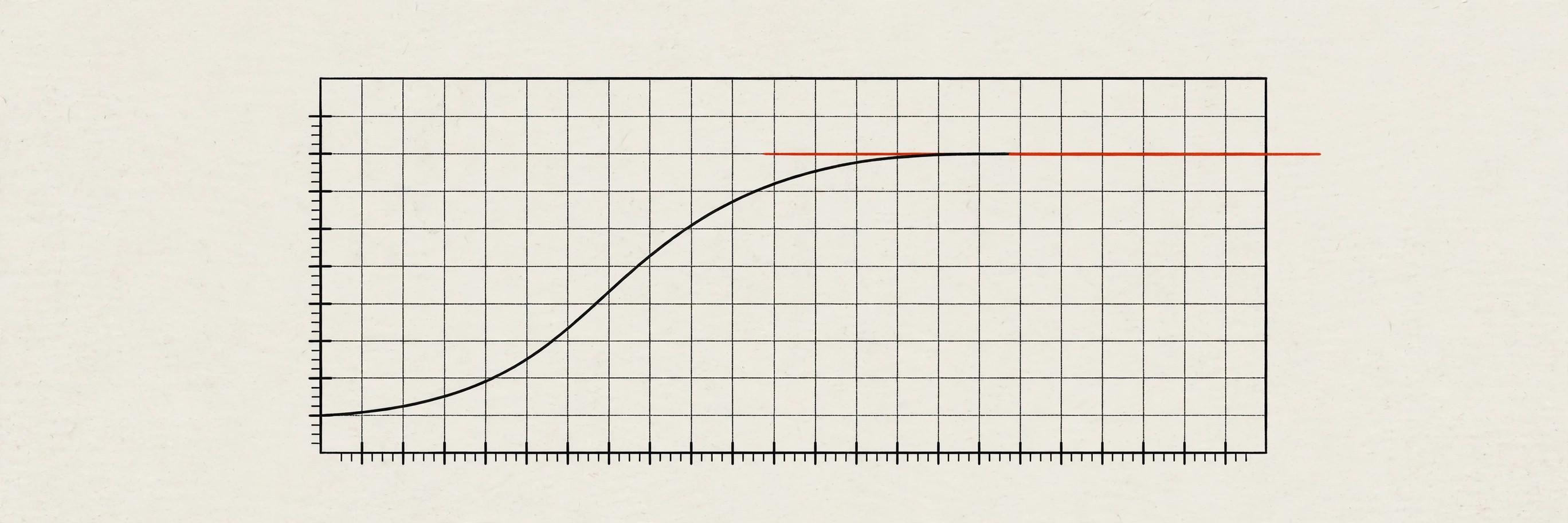
And then there is diminishing returns. Clock speed does not scale linearly with wattage: each additional watt buys less extra clock than the one before it. Going from a very tight limit to a reasonable one can buy a lot. Going from an already generous limit to an even higher one buys much less, while producing proportionally more heat. The biggest gains live at the bottom of the climb, not the top.
The honest test is simple: if your GPU's power draw sits flat at its limit during a game while the frame rate is below what you want, more watts can help. If the power draw sits well below the limit, something else is holding the GPU back — usually temperature, or a CPU bottleneck — and a higher ceiling will not change the number on screen.
How to check before you raise anything
Do not guess. Measure your own machine, in your own games, at your own settings. It takes one gaming session.
Open HWiNFO64 or GPU-Z and start the game you actually care about. After a few minutes — not in the first ten seconds, when the GPU is still boosting freely — look at two numbers: GPU power draw and GPU clock speed. If power draw is pinned at the limit and the clock has settled well below its boost range, the power ceiling is your bottleneck. That is the case where raising the limit helps.
If power draw is well below the limit but clocks are still low, the limit is not your problem. Check temperatures next: if the GPU or its hotspot is high, thermal throttling is holding the clocks down, and a higher power limit will only make the heat worse. If temperatures are fine and power draw is low, the game is probably CPU-bound, and no GPU setting will fix that.
Also check the adapter before you raise anything. The power brick has to supply the GPU and the CPU at the same time. If it cannot cover both, the laptop throttles or drains the battery while plugged in — and no software setting fixes a wattage shortage. A bigger adapter is a precondition for a higher limit, not an optional extra.
What raising the limit actually involves
The tools most people reach for first cannot do this job. MSI Afterburner can shift clocks on a laptop GPU, but it cannot raise the power ceiling — the limit itself stays exactly where the laptop maker set it. And nvidia-smi can report the limit from the command line, but it cannot change it on a laptop GPU. Reading and writing are different things.
Raising the ceiling requires working with the NVIDIA driver, which is what NvpwrControl does. It is a portable Windows app: extract the zip, run NvpwrControl.exe as administrator, no install. It never flashes the VBIOS. Before changing the MAX limit it backs up driver settings, and it checks the GPU, PCI IDs, driver and VBIOS against the live power policy before any write.
The flow is deliberate: set the MAX limit, save, and reboot; then set the CURRENT runtime limit while the GPU is idle. Limits adjust in 5 W steps, so you climb gradually instead of jumping straight to the top. An auto-reapply option re-sets the limit after MSI Center mode switches, with a 1–10 second delay. And Reset All returns everything to stock and removes the override and autostart, so there is always a tested route back.
Validated ranges for the newer cards are: RTX 5090 and 5080 laptops 175 W stock to 250 W max, RTX 5070 Ti 140 W to 180 W, RTX 5070, 5060 and 5050 115 W to 140 W; RTX 4090 150 W to 250 W, RTX 4080 150 W to 225 W, RTX 4070 and 4060 120 W to 150 W, RTX 4050 115 W to 140 W. RTX 30 and RTX 20 series support is experimental, so extra caution applies there. Clock offsets are a separate lever — core offsets up to ±1000 MHz and memory offsets up to ±3000 MHz through NVAPI — but an offset shifts the clock curve without changing the wattage budget, so on a laptop pinned at its TGP ceiling the sustained clock barely moves. Raise the power limit first.
The honest risks
More watts means more heat — on the GPU, the VRAM, and the voltage regulators — and on a laptop that heat has to go through a cooling system that was designed around the stock limit. Watch the GPU hotspot temperature as well as the edge temperature; the hotspot runs hotter and is the number that matters for throttling.
The adapter risk is real too. If the brick cannot supply GPU plus CPU wattage, the laptop throttles or drains the battery while plugged in. Confirm the adapter wattage before you raise the limit, and if it is only just enough at stock settings, there is no headroom to raise.
Warranty depends on the laptop maker. Some makers are relaxed about software tweaks, others are not, and the position varies by brand and by region. Check your maker's policy before you change anything.
The practical rules are simple: raise in 5 W steps, monitor with HWiNFO or GPU-Z, stop at the first sign of instability, and benchmark before and after with the same test so you know what you actually gained. NvpwrControl's telemetry shows clocks, voltage, power, temperature, hotspot, P-states and rails, so you can see what is happening rather than guessing.
The bottom line
A higher power limit increases FPS when the GPU was power-limited — when the power draw was pinned at the ceiling in the games you play, at the settings you use. When the GPU is the bottleneck and the ceiling is engaged, the gain can be large, because laptop chips like the RTX 5090 and 4090 are the same silicon as desktop cards running at roughly double the wattage. When the game is CPU-bound, or the GPU never reaches its limit, or temperatures are already the constraint, extra watts buy nothing — and they still cost heat.
So before you raise anything, spend one gaming session measuring. If the power draw is glued to the limit and the clocks have settled low, you have found your bottleneck, and a careful, step-by-step raise is worth testing. If it is not, you have saved yourself the heat, the risk, and the disappointment — and you know where the real bottleneck lives.
Notes — Questions this entry raises
Does raising my laptop GPU's power limit increase FPS?
It can, but only when the GPU was actually power-limited. A higher limit lets the GPU sustain higher clock speeds under load, and higher sustained clocks mean more frames — in games and settings where the GPU was pinned at its wattage ceiling. If the GPU was already running inside its stock limit, raising the ceiling changes nothing.
How much FPS can a higher power limit add?
There is no fixed number, because it depends on the game, the resolution, and how often your GPU was hitting its limit. The clearest published evidence is in benchmarks: NvpwrControl's published 3DMark results show around 30% more GPU performance — for example, an RTX 4090 Laptop scored 25,564 in Time Spy Graphics unlocked versus 21,007 stock. Real games vary more, so benchmark your own machine before and after to see your gain.
Why doesn't more wattage always mean more FPS?
Because FPS is set by the slowest part of the system, not just the GPU. If a game is CPU-bound, or limited by a single-threaded game engine, the GPU has idle capacity and a higher power limit buys nothing. The power limit only matters when the GPU itself is the bottleneck and it is pinned at its wattage ceiling. Raising the ceiling also hits diminishing returns: each extra watt buys less clock speed than the one before it.
Will raising the power limit help at 1080p or 1440p?
It depends on whether the GPU is the bottleneck at that resolution. At higher resolutions and higher settings, the GPU works harder and is more likely to hit its power limit, so a higher limit usually helps more there. At 1080p with modest settings, many games are CPU-bound and the GPU never reaches its ceiling, so raising the limit often changes nothing. Test your own games at your own settings.
Can I raise my laptop GPU's power limit with MSI Afterburner?
No. MSI Afterburner can shift clocks on a laptop GPU, but it cannot raise the power ceiling — the limit itself stays exactly where the laptop maker set it. Raising the ceiling requires working with the NVIDIA driver, which is what NvpwrControl does. NvpwrControl never flashes the VBIOS.
Is raising the power limit to get more FPS safe?
It carries real risks that should be stated plainly. More watts means more heat on the GPU, VRAM and VRMs, and your adapter must supply GPU plus CPU wattage or the laptop throttles or drains the battery while plugged in. Warranty depends on the laptop maker. Raise in 5 W steps, monitor temperatures with HWiNFO or GPU-Z, and remember that NvpwrControl backs up driver settings before changing anything and can return everything to stock with Reset All.
Table — Keep reading