Laptop GPU Power Limits in 2026: What to Check Before Buying Your Next Gaming Laptop
Before you buy a gaming laptop in 2026, check the GPU power limit. Same chip, different wattage, very different performance — here is what to verify first.
By NvpwrControl Team · laptop GPU power limit · TGP · gaming laptop buying guide · RTX laptop · GPU wattage
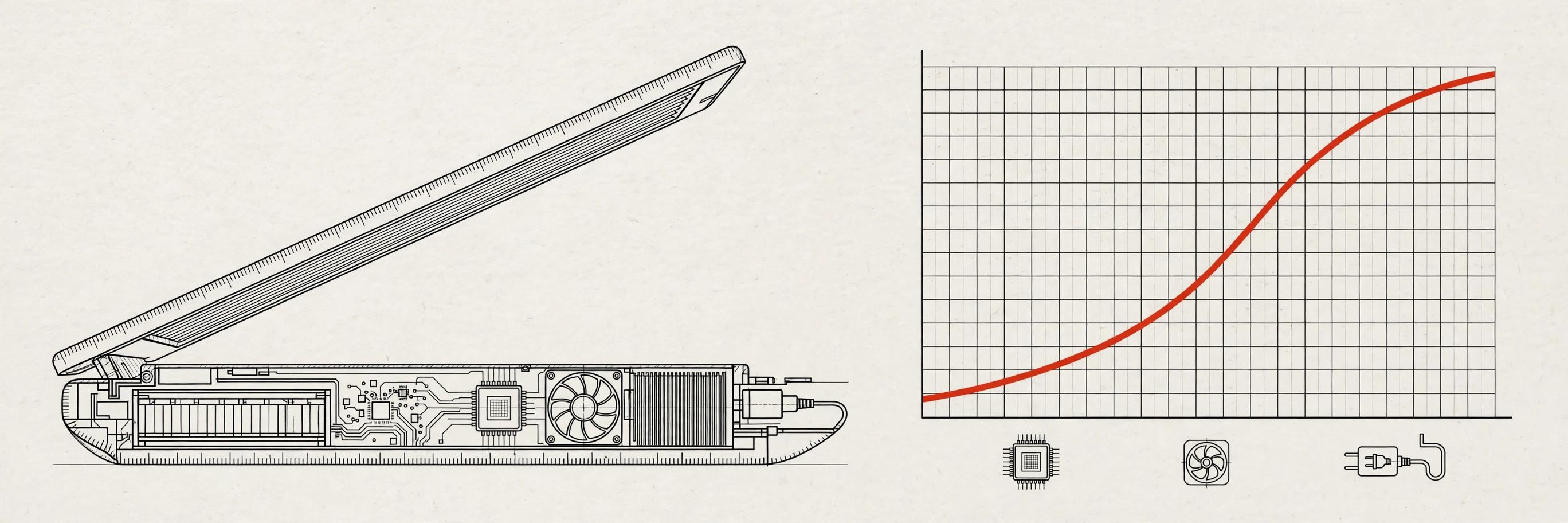
Shopping for a gaming laptop in 2026 is confusing in a very specific way. The spec sheets all look the same: RTX 5070, RTX 5080, RTX 5090. Same names, same VRAM figures, same marketing slides. But two laptops with the same GPU on the box can deliver very different frame rates in the same game — and the reason is almost always the power limit.
A laptop GPU is not a desktop GPU. The chip inside an RTX 5090 Laptop is the same silicon as a desktop RTX 5080, and the chip inside an RTX 4090 Laptop is the same silicon as a desktop RTX 4080. What changes is the power budget the laptop maker allows. The desktop RTX 5080 runs at 360W; the laptop version of the same chip is capped at 175W in most machines. That cap — the TGP, or Total Graphics Power — is the single most important number on a gaming laptop spec sheet, and it is the number most buyers never check.
This guide covers what to look for before you buy, so the laptop you take home performs the way you expected it to.
Why the same GPU has different performance in different laptops
NVIDIA sells laptop makers a GPU chip and a range of power configurations. The maker then decides how many watts that chip is allowed to draw in their chassis, based on the cooling system, the power adapter, the thickness of the machine, and how much noise they are willing to accept.
The result is that the GPU model name tells you which chip you are getting, but not how fast it will run. A thin laptop with a cramped cooler will run the same chip at a lower power limit than a thick laptop with a large vapour chamber and dual fans. The thin machine may boost higher for a few seconds, then settle at a much lower sustained clock speed once heat builds up. The thick machine holds its clocks for the whole gaming session.
That is why review benchmarks can disagree so wildly for the same GPU. A short benchmark run measures the boost; a long gaming session measures the sustained power limit.
Check 1: the stock power limit on the spec sheet
Start with the TGP. Reputable makers list it in the specifications, sometimes labelled as "TGP", "GPU power", or "graphics power". If a listing only says "RTX 5070" with no wattage anywhere, treat that as a warning sign — the maker may be hiding a low power limit behind the brand name.
For the current generation, these are the stock limits you will typically see:
- RTX 5090 Laptop: 175W
- RTX 5080 Laptop: 175W
- RTX 5070 Ti Laptop: 140W
- RTX 5070 / 5060 / 5050 Laptop: 115W
- RTX 4090 Laptop: 150W
- RTX 4080 Laptop: 150W
- RTX 4070 / 4060 Laptop: 120W
- RTX 4050 Laptop: 115W
These are the stock values. What matters for your buying decision is not just where a laptop starts, but where the chip can go — which brings us to headroom.
Check 2: how much headroom the chip actually has
A GPU capped at 175W is not necessarily a 175W GPU. In many cases the silicon is capable of much more, and the limit exists because of the chassis, not the chip. The RTX 5090 Laptop chip, for example, is the same GB203 silicon as the 360W desktop RTX 5080. It is being held back by the laptop's power budget, not by its own capability.
Validated maximum limits — the highest the chip can be raised to through driver-level control — look like this:
- RTX 5090 Laptop: 175W stock, up to 250W
- RTX 5080 Laptop: 175W stock, up to 250W
- RTX 5070 Ti Laptop: 140W stock, up to 180W
- RTX 5070 / 5060 / 5050 Laptop: 115W stock, up to 140W
- RTX 4090 Laptop: 150W stock, up to 250W
- RTX 4080 Laptop: 150W stock, up to 225W
- RTX 4070 / 4060 Laptop: 120W stock, up to 150W
- RTX 4050 Laptop: 115W stock, up to 140W
That headroom is real performance. Published 3DMark results, measured against Notebookcheck stock averages, show an RTX 4090 Laptop scoring 25,564 in Time Spy Graphics unlocked versus 21,007 at stock, and an RTX 5090 Laptop scoring 9,072 in Steel Nomad unlocked versus 5,899 at stock. Across the tested models, unlocking the power limit delivers around 30% more GPU performance in 3DMark.
When you are choosing between two laptops, ask yourself which one leaves you room to grow. A machine whose chip is already near its maximum has nowhere to go. A machine with a large gap between stock and maximum gives you an upgrade path later — if the cooling and the adapter can support it.
Check 3: the power adapter
A GPU that can draw 250W is useless if the wall adapter cannot deliver it. The adapter has to supply the GPU and the CPU at the same time, plus the screen, the fans, and the rest of the system. If the total demand exceeds what the adapter can provide, the laptop throttles — or worse, it starts draining the battery even while plugged in.
Check the adapter wattage on the spec sheet and compare it against the combined load. A laptop with a high-wattage GPU and a modest adapter is a laptop that will never sustain its advertised performance under full load. This is one of the most common corners cut in mid-range gaming laptops, and it rarely shows up in marketing material.
If you are comparing two machines with the same GPU, the one with the larger adapter is usually the one that will hold its performance longer. It is a boring specification, and it matters more than most of the exciting ones.
Check 4: cooling and thermals
More watts become more heat. That heat lands on the GPU die, the VRAM, the voltage regulators, and the cooling system that has to move it all out of a chassis a couple of centimetres thick. A laptop that cannot cool a higher power limit cannot use it.
Before buying, look for independent reviews that measure temperatures under sustained load, not just in a five-minute benchmark. Pay attention to the GPU hotspot temperature — the hottest point on the die — rather than the edge temperature alone, because the hotspot is the reading that decides whether the GPU throttles. Also check VRAM temperature: memory runs hotter when you raise power, and it is often the first thing to limit a laptop that otherwise looks fine.
Cooling design tells you a lot before you ever see a temperature graph. A thicker chassis with larger fans and more heatpipes will almost always sustain higher power than a thin-and-light machine with the same chip. That does not make thin laptops bad — it makes them a trade-off, and you should know which side of the trade you are buying.
Check 5: Dynamic Boost and CPU power sharing
Laptop power is a shared budget. NVIDIA's Dynamic Boost shifts watts between the CPU and the GPU depending on what the workload needs: a game that leans on the GPU gets more GPU power, while a CPU-heavy task gets more CPU power. That is useful, but it also means the GPU's headline wattage is not always available — if the CPU is working hard, some of that power goes to the processor instead.
Some laptop makers also switch power profiles when you change modes in their control software. A "balanced" mode and a "performance" mode may set different GPU limits, and switching between them can reset a limit you set yourself. If you plan to adjust your power limit, look for a tool that re-applies it automatically after a mode switch — NvpwrControl, for example, offers an auto-reapply option that re-sets the limit after MSI Center mode switches, with a short delay of one to ten seconds.
When you read reviews, look for sustained gaming tests rather than synthetic bursts. A laptop that holds its GPU clock steady through an hour of gameplay is telling you the truth about its power budget.
Check 6: can the limit be raised later?
Here is the question most buyers never ask until it is too late: if I buy the lower-wattage version of this GPU, can I raise the limit afterwards?
The honest answer is that it depends on the tool, not just the laptop. MSI Afterburner is the tool most people reach for first, and it is genuinely useful for shifting clock speeds — but it cannot raise a laptop GPU's power ceiling. The ceiling is set elsewhere, in the driver-level power policy, and Afterburner does not touch it.
Raising the ceiling requires working with the NVIDIA driver directly. NvpwrControl does exactly that: it is a portable Windows app — extract the zip, run it as administrator, no install — that raises the power limit by working with the driver, never by flashing the VBIOS. It backs up your driver settings before changing anything, checks the GPU, PCI IDs, driver and VBIOS against the live power policy before any write, and can return everything to stock with a single reset.
The flow is simple: set the maximum limit, save, reboot, then set the current runtime limit while the GPU is idle. Limits adjust in 5W steps, so you can raise gradually instead of jumping straight to the maximum. If you want to go further, core clock offset up to ±1000 MHz and memory offset up to ±3000 MHz are available, along with telemetry for clocks, voltage, power, temperature, hotspot, P-states and power rails.
Two things to be clear about before you count on raising a limit. First, the risks are real: more heat on the GPU, VRAM and voltage regulators, and more demand on the adapter — raise in small steps and monitor with HWiNFO or GPU-Z. Second, warranty depends on the laptop maker, so check their policy before you change anything.
A quick pre-purchase checklist
Run through this list before you buy, and you will avoid the most common disappointment in laptop shopping:
- Find the TGP. If the spec sheet hides it, ask the seller or look for a review that measured it.
- Check the headroom. Compare the stock limit against the chip's validated maximum, and prefer a laptop with room to grow.
- Check the adapter. It must cover the GPU and the CPU combined, or the laptop will throttle under full load.
- Read sustained-load reviews. Look at temperatures and clocks after an hour of gaming, not after five minutes.
- Check the hotspot and VRAM temperatures. These are the readings that actually limit performance.
- Ask whether the limit can be raised. If you might want more performance later, know before you buy whether the ceiling is adjustable — and by what means.
- Check the warranty position. Know your laptop maker's stance before you change a power limit.
After you buy: verify before you trust
Once the laptop arrives, do not take the spec sheet's word for it. Open HWiNFO64 or GPU-Z, run a game or a benchmark, and watch the power draw, the clocks, and the hotspot temperature under sustained load. That is the moment you find out what you actually bought.
If the numbers disappoint you, remember that the limit is not always the end of the story. A laptop with headroom, adequate cooling and a strong adapter can often be raised to its chip's real capability — in 5W steps, with monitoring, and with a reset path back to stock.
The GPU model name on the box is the beginning of the buying decision, not the end of it. The power limit, the adapter, the cooling, and the headroom are what decide how fast your laptop actually is. Check them before you pay, and you will not be surprised after.
Notes — Questions this entry raises
What is a laptop GPU power limit (TGP)?
TGP — Total Graphics Power — is the maximum wattage a laptop GPU is allowed to draw. It is set by the laptop maker, not by NVIDIA alone, and it decides how fast the GPU can run under sustained load. Two laptops with the same GPU chip can have very different TGP values, and therefore very different gaming performance.
Why does the same GPU perform differently in different laptops?
Because the GPU chip is only half the story. The other half is how many watts the laptop lets it draw and how well the cooling removes the resulting heat. A GPU capped at a low power limit will clock lower and deliver fewer frames than the same chip running at a higher limit in a better-cooled chassis, even though the model name on the box is identical.
Can I raise my laptop GPU power limit after buying?
It depends on the laptop. MSI Afterburner can shift clock speeds but cannot raise a laptop GPU's power ceiling. NvpwrControl raises the limit itself by working with the NVIDIA driver directly — it never flashes VBIOS — with validated ranges such as RTX 5090 Laptop 175W to 250W and RTX 4090 Laptop 150W to 250W. Raising the limit adds heat, so raise in steps and monitor with HWiNFO or GPU-Z.
Does a bigger power adapter mean a faster gaming laptop?
Not directly, but the adapter has to supply the GPU and the CPU combined. If the adapter cannot cover both at full load, the laptop throttles or drains the battery while plugged in. When comparing laptops, check the adapter wattage alongside the GPU's TGP — a high-wattage GPU paired with a weak adapter will never sustain its advertised performance.
What should I check in a gaming laptop spec sheet before buying?
Check the GPU's TGP or power limit, the adapter wattage, the cooling design and fan layout, whether the maker allows power-limit adjustment, and independent reviews of sustained performance rather than short benchmark bursts. A laptop that only holds its peak clocks for a few minutes is not the same as one that holds them for an hour of gaming.
Is raising a laptop GPU power limit safe?
It adds real risk: more heat on the GPU, VRAM and voltage regulators, and more demand on the power adapter. Warranty depends on the laptop maker. The safe approach is to raise the limit in small steps, monitor temperatures and power draw with HWiNFO or GPU-Z, and stop if the cooling cannot keep up. NvpwrControl backs up driver settings before changing anything and can return everything to stock.
Table — Keep reading