Laptop Cooling Upgrades That Make Higher Power Limits Worth It
Raising your laptop GPU power limit only pays off if the cooling can keep up. These practical cooling upgrades turn extra watts into real performance.
By NvpwrControl Team · laptop cooling · laptop GPU power limit · TGP · thermal throttling · gaming laptop cooling · RTX laptop
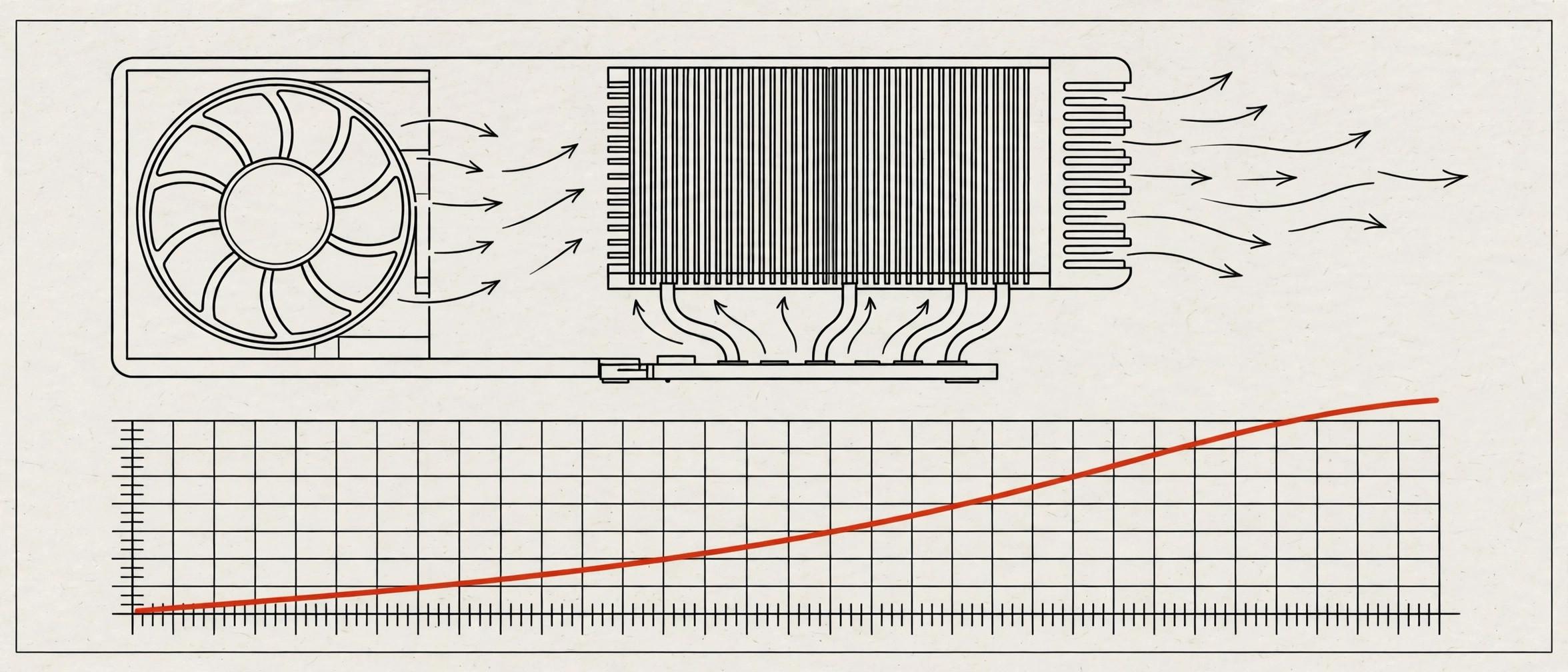
Raising your laptop GPU's power limit is one of the most effective ways to get more performance out of a gaming laptop. An RTX 5090 laptop capped at 175W can be raised to 250W, and an RTX 4090 laptop from 150W to 250W. But there is a catch: those extra watts turn into heat, and heat decides whether the extra power becomes extra frames or just a hotter, louder laptop.
A higher power limit only pays off if the cooling system can keep up. This guide covers the cooling upgrades that actually make a raised power limit worth it, from free tweaks to the more involved jobs, and how to tell when cooling — not wattage — is your real bottleneck.
Why cooling decides whether extra watts help
A laptop GPU is governed by two limits at once: the power limit (TGP) and the temperature limit. Raise the power limit and the GPU will try to run at higher clocks, drawing more power and producing more heat. If the cooling system can move that heat away, clocks stay high and you keep the performance. If it cannot, the GPU hits its thermal limit and throttles — clocks drop, sometimes below where they were before you raised the limit.
That is the frustrating outcome people run into: they raise the limit, temperatures shoot up, the fan screams, and frame rates barely move. The watts went in, but the heat had nowhere to go.
Free first: airflow and placement
Start with the upgrades that cost nothing, because they fix the most common and most embarrassing problem: a laptop that is starving for air.
Lift the back of the laptop. Most gaming laptops draw cool air from underneath and exhaust it out the sides or rear. Sitting flat on a desk, the intakes are partly blocked. Raising the rear by even a couple of centimetres — a book, a small stand, anything stable — opens up the intake path and can drop temperatures by a few degrees. It is the single best free cooling tweak there is.
Keep the intakes clear. Check where your laptop's intakes actually are. They are usually on the bottom panel, sometimes on the sides. Make sure nothing blocks them: no soft surfaces like beds or laps, no papers or cables draped over the vents, and no pushing the laptop against a wall that blocks the exhaust.
Clean the dust out. Dust builds up in laptop fans and heatsink fins over months, and it quietly strangles airflow. A can of compressed air through the vents every few months is basic maintenance. Hold the fan still while you blow air through it so it does not spin up to damaging speeds. On a laptop that has never been cleaned, this alone can be a real improvement.
Mind the room. A laptop in a hot room has less cooling headroom than the same laptop in a cool one. It sounds obvious, but ambient temperature feeds directly into GPU temperature. If you game in a warm room in summer, expect higher temperatures and plan your power limit accordingly.
A laptop stand or cooling pad
Once the free fixes are done, the next step is a stand or cooling pad, and the distinction matters.
A simple laptop stand lifts the machine and angles it for better airflow. It does the same job as the book under the back, but more stably and with better ergonomics. If your laptop's own fans are strong, a passive stand is often all you need.
A cooling pad adds its own fans underneath, actively pushing air toward the intakes. The honest assessment: a good cooling pad helps, but modestly. Expect a few degrees, not a transformation, and the benefit depends heavily on your laptop's design. A pad helps most when the laptop's intakes are on the bottom and the pad's fans line up with them. If the intakes are on the sides, a pad does very little. Before buying, check reviews from people with your specific laptop model — generic claims about cooling pads are not worth much.
Either way, a stand or pad is cheap, carries zero risk to the laptop, and is easy to try. It is the right first purchase if you are planning to raise your power limit.
Fan curves and control software
Most gaming laptops ship with vendor control software — MSI Center, Armoury Crate, Lenovo Vantage and similar — that lets you choose between quiet, balanced and performance fan profiles. Before raising the power limit, make sure you are running the performance profile when gaming. A laptop set to a quiet profile will throttle long before a raised power limit can do any good.
Some of these tools also let you set a custom fan curve. The trade-off is straightforward: more fan speed means lower temperatures and more noise. There is no free lunch here, but there is a sensible middle ground — a curve that ramps fans up early enough to keep temperatures under control, without running at full blast the moment you open a game.
One thing to know if you use NvpwrControl: its auto-reapply option re-sets the power limit after MSI Center mode switches, with a short delay of one to ten seconds. That means you can switch fan profiles without losing your power limit setting.
Repasting: the biggest gain, and the biggest risk
Thermal paste sits between the GPU (and CPU) die and the heatsink, transferring heat from the chip to the cooling system. Factory paste dries out over time, and on some laptops it was never applied well in the first place. Replacing it with a quality paste is often the single most effective cooling upgrade for an older laptop.
The catch is that it is also the most involved. Repasting means opening the laptop, removing the heatsink, cleaning off the old paste, applying new paste, and reassembling everything correctly. Done right, it can bring temperatures down noticeably. Done wrong, you can damage the board, crack a die, or leave the heatsink seated unevenly and make things worse.
It also interacts with your warranty: whether opening the laptop affects warranty coverage depends on the laptop maker, and some makers treat it as voiding the warranty while others do not. Check your maker's policy before you open anything.
Our advice: repaste only if you are comfortable working inside a laptop, you have watched a teardown guide for your exact model, and your laptop is old enough that the factory paste is plausibly degraded. If any of that does not apply, the other upgrades on this list will get you most of the way there.
Liquid metal: powerful, and not for everyone
Liquid metal thermal compound transfers heat far better than conventional paste, and it has a following among enthusiasts chasing the lowest possible temperatures. It also has real downsides: it is electrically conductive, so a spill can short the board; it can corrode aluminium heatsinks; and it needs careful application and periodic checking.
For most people raising a laptop GPU power limit, liquid metal is overkill. A good conventional repaste plus the airflow improvements above will handle the extra heat from a raised limit. Consider liquid metal only if you are experienced, you understand the risks, and you have already done everything else.
Undervolting: less heat for the same performance
Undervolting lowers the voltage the GPU runs at while keeping the same clock speeds. Less voltage means less power draw and less heat for the same performance — which is exactly what you want when cooling is the bottleneck. It pairs well with a raised power limit: the undervolt reduces heat, and the raised limit gives the GPU room to hold higher clocks.
Undervolting is a tuning process, not a switch. You lower the voltage in small steps and test stability at each step, because too little voltage causes crashes. Take your time, test properly, and keep notes on what is stable. It is worth doing, but it is a separate job from raising the power limit — do one at a time so you know which change caused which result.
Don't forget the power adapter
Cooling is only half the equation. The power adapter has to supply enough wattage for the GPU and the CPU combined. Raise the GPU limit from 175W to 250W and you are asking the adapter for 75W more, on top of whatever the CPU draws under load. If the adapter cannot deliver it, the laptop will throttle or drain the battery even while gaming plugged in — and no amount of cooling will fix that.
Check your adapter's rated wattage against the combined draw of your CPU and GPU at full load. If the numbers are close, a higher-wattage adapter from the laptop maker may be needed before a raised limit makes sense. This is a separate bottleneck from cooling, but it produces the same symptom: you raise the limit and nothing improves.
A sensible order of operations
If you are planning to raise your laptop GPU power limit, work through cooling in this order:
- Measure first. Check temperatures and power draw under load at stock settings with HWiNFO or GPU-Z. Know your baseline.
- Fix airflow. Lift the laptop, clear the intakes, clean out dust. Free, and often enough on its own.
- Add a stand or cooling pad. Cheap, zero risk, a few degrees of headroom.
- Set the fan profile to performance. Make sure the laptop is actually trying to cool itself.
- Raise the limit in steps. NvpwrControl adjusts limits in 5W steps — use that granularity. Raise a little, test temperatures, and stop when temperatures climb to the point where the GPU throttles.
- Repaste only if needed. If temperatures are still the limiting factor after the steps above and you are comfortable opening the laptop, a repaste is the next real gain.
- Watch the adapter. If the laptop throttles or the battery drains while plugged in, power delivery — not cooling — is the bottleneck.
The honest summary
Cooling upgrades do not make your laptop faster by themselves. What they do is remove the barrier that stops a higher power limit from working. An RTX 5090 laptop raised from 175W to 250W, or an RTX 4090 laptop from 150W to 250W, has genuinely more performance available — the published 3DMark results show around 30% more GPU performance in 3DMark when the limit is raised. But that performance only shows up if temperatures stay under control, and that is what cooling is for.
Spend on cooling in proportion to the gain you are chasing. The free fixes and a stand cover most people. A repaste is worth it on an older laptop if you can do it safely. Liquid metal is for enthusiasts. And whatever you do, raise the limit in steps and monitor with HWiNFO or GPU-Z — the numbers will tell you whether cooling or wattage is holding you back.
NvpwrControl raises laptop GPU power limits by working with the NVIDIA driver directly — it never flashes VBIOS, it backs up driver settings before any change, and Reset all returns everything to stock. It works best on a laptop whose cooling is already in good shape, which is why sorting cooling first is the right order. More heat on the GPU, VRAM and VRMs is the real cost of extra watts, so treat cooling as part of the upgrade, not an afterthought.
Notes — Questions this entry raises
Why does cooling matter when raising a laptop GPU power limit?
A higher power limit only helps if the GPU can actually use the extra watts. If the cooling system cannot remove the extra heat, the GPU hits its temperature limit and throttles back down — so you get the heat without the performance. Good cooling is what turns extra watts into sustained higher clocks.
Does a laptop cooling pad actually help?
A decent cooling pad can help by feeding more cool air to the intakes and lifting the laptop so hot air escapes more easily. The effect is modest — typically a few degrees — and it varies a lot by laptop design. It is a cheap, zero-risk first step, but it will not fix a cooling system that is fundamentally undersized for a raised power limit.
Is repasting a laptop GPU worth it?
Replacing dried-out factory thermal paste with a quality paste can lower GPU temperatures noticeably, especially on laptops that are a year or two old. It requires opening the laptop and removing the heatsink, so it carries real risk: you can damage components, and it may affect your warranty depending on the laptop maker. Only attempt it if you are comfortable working inside a laptop.
Should I raise my GPU power limit before or after improving cooling?
Improve cooling first, or at least check your current temperatures under load. Raise the limit in small steps and watch temperatures with a monitoring tool such as HWiNFO or GPU-Z. If temperatures climb to the point where the GPU throttles, more cooling — not more watts — is the next step.
Does a bigger power adapter help with cooling?
No, the adapter does not cool anything — but it matters. The adapter must supply enough wattage for the GPU and CPU combined, or the laptop will throttle or drain the battery under load even if temperatures are fine. Cooling and power delivery are separate bottlenecks, and a raised power limit needs both to be in good shape.
Can NvpwrControl raise my laptop GPU power limit?
NvpwrControl is a portable Windows app that raises NVIDIA laptop GPU power limits by working with the NVIDIA driver directly — it never flashes VBIOS. Validated ranges include RTX 5090 and 5080 laptops from 175W up to 250W, RTX 4090 from 150W up to 250W, and RTX 4080 from 150W up to 225W. It backs up driver settings before any change, and Reset all returns everything to stock.
Table — Keep reading