Dynamic Boost vs Manual Power Limits: Which Controls Your Laptop GPU?
Dynamic Boost shifts power between CPU and GPU, but it cannot raise the GPU's hard power ceiling. Here is how the two controls differ and which one limits your laptop.
By NvpwrControl Team · Dynamic Boost · laptop GPU power limit · TGP · RTX laptop · GPU wattage
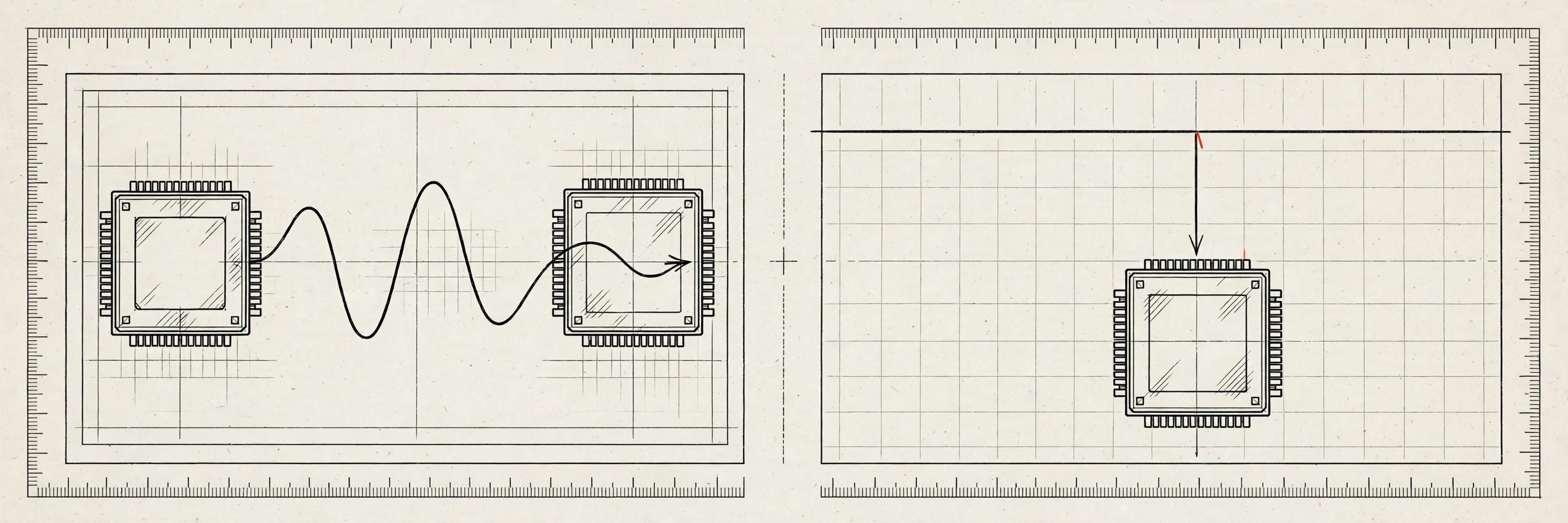
If you have ever watched your laptop GPU's power draw bounce around during a game and wondered who is actually in charge, the answer is: two different systems, doing two different jobs. One of them moves power around. The other one sets the ceiling. Confusing the two is the reason so many owners chase a setting that was never going to give them more performance.
This guide explains what Dynamic Boost does, what a manual power limit does, where each one stops, and how to tell which one is limiting your laptop right now.
What Dynamic Boost actually does
Dynamic Boost is NVIDIA's automatic power-sharing feature. A gaming laptop has a total power budget that the CPU and GPU share. In most games the CPU is not using its full share, so Dynamic Boost hands the spare watts to the GPU, letting it clock higher than it could on its fixed allocation alone. When the workload flips — a CPU-heavy scene, a physics calculation, a background task — the power flows back the other way.
The key word is redistribute. Dynamic Boost never creates power. It never raises the total budget, and it never raises the GPU's hard ceiling. It is a traffic controller, not a bigger road. If your GPU is already sitting at its maximum power limit, Dynamic Boost has nothing left to give it, no matter how idle the CPU is.
That is why Dynamic Boost feels inconsistent. In a game that barely touches the CPU, you will see the GPU drawing close to its cap and performing well. In a game that hammers both chips at once, the GPU may sit well below its cap because the CPU is using its share — and there is nothing you can toggle in a settings menu to change that balance, because the sharing is decided by the laptop's firmware and drivers, moment by moment.
What a manual power limit is
The manual power limit — the TGP ceiling — is the hard cap on how many watts the GPU is allowed to draw. It is set in the laptop's power policy by the laptop maker, and it is the number that decides how fast the GPU can run under sustained load. Two laptops with the same GPU chip can have very different ceilings, and that difference shows up directly in frame rates.
Raising the ceiling is a different kind of change from Dynamic Boost. Instead of shuffling the same watts between two chips, you are giving the GPU genuinely more power to work with. On the models NvpwrControl supports, the validated ranges are substantial: an RTX 5090 laptop goes from a 175W stock cap to a 250W maximum, an RTX 5080 laptop the same 175W to 250W, an RTX 5070 Ti from 140W to 180W, and an RTX 4090 laptop from 150W to 250W. The RTX 4080 laptop moves from 150W to 225W, and the RTX 4070 and 4060 laptops from 120W to 150W. RTX 30 and RTX 20 series laptops are supported experimentally.
That extra headroom is what turns into performance. Published 3DMark results, measured against Notebookcheck stock averages, show an RTX 4090 laptop scoring 25,564 in Time Spy Graphics unlocked versus 21,007 at stock, and an RTX 5070 Ti laptop scoring 20,858 versus 17,225. In Steel Nomad, an RTX 5090 laptop scores 9,072 unlocked versus 5,899 at stock, and an RTX 5080 laptop 7,338 versus 4,854. The headline figure is around 30% more GPU performance in 3DMark — and none of that comes from Dynamic Boost, because Dynamic Boost cannot move the ceiling those scores were capped by.
The two controls side by side
Think of it this way. Your laptop's total power budget is a fixed-size pie. Dynamic Boost decides how the pie is sliced between the CPU and GPU at any given moment. The manual power limit decides how big the GPU's slice is allowed to be at most. A bigger slice for the GPU still cannot exceed the ceiling, and a higher ceiling is still bounded by the size of the pie and the adapter feeding it.
Here is the practical difference in a game:
- Dynamic Boost working well: CPU load is light, the GPU is drawing close to its cap, clocks are high, and frame rates are strong. The GPU is limited by its ceiling, not by sharing.
- Dynamic Boost with nothing to give: CPU and GPU are both loaded. The GPU draws less than its cap because the CPU is using its share. Raising the GPU ceiling changes nothing here — the constraint is the shared budget, not the GPU's cap.
- Ceiling is the bottleneck: The CPU is idle, the GPU is pinned at its cap, and temperatures are fine. Dynamic Boost cannot help, because there is no spare power and the cap is the wall. This is the scenario where raising the manual limit actually buys performance.
Most owners who feel their laptop is underperforming are in the third scenario and do not know it. They toggle Dynamic Boost settings, update drivers, and close background apps, and nothing changes — because the thing holding them back is a number in the power policy, not a sharing decision.
How to tell which one is limiting you
You do not need to guess. A single monitoring session with HWiNFO or GPU-Z will show you the answer.
- Run a demanding game or benchmark and watch the GPU power draw, the GPU clock, and the temperature.
- If power draw sits flat at a round number — 175W, 150W, 120W — while the temperature is well below the thermal limit and the CPU is not heavily loaded, you are at the manual power ceiling. Dynamic Boost cannot help you; only a higher ceiling can.
- If power draw fluctuates and drops whenever CPU load spikes, you are watching Dynamic Boost share power. The ceiling is not your problem in that moment; the shared budget is.
- If the clock drops while power draw is below the cap and the temperature is high, you are thermally limited. More power would only make it worse until the cooling improves.
The hotspot temperature matters here too — it can run well above the GPU edge temperature, and it is often the first thermal trip point. Watch both numbers, not just the headline temperature.
What actually changes the ceiling
This is where the confusion costs people the most time. The tools most owners reach for first cannot touch the ceiling at all.
MSI Afterburner is the classic example. It is a good tool for shifting clock speeds, and it works on laptops, but it cannot raise a laptop GPU's power ceiling. The ceiling lives in the laptop's power policy, and Afterburner has no route to it. The same is true of nvidia-smi, which can report the limit but not change it on a laptop GPU.
Changing the ceiling takes a tool that works with the NVIDIA driver directly. NvpwrControl does exactly that: it is a portable Windows app — extract the zip, run NvpwrControl.exe as administrator, no installation — that raises the power limit through the driver. It never flashes the VBIOS. Before any change it backs up the driver settings and checks the GPU, PCI IDs, driver and VBIOS against the live power policy, so a write only happens when everything matches.
The flow is deliberately conservative. You set the MAX limit, save, and reboot; then you set the CURRENT runtime limit while the GPU is idle. Limits adjust in 5W steps, so you can climb gradually instead of jumping straight to the maximum. If your laptop has an MSI Center mode switch that resets the limit, the auto-reapply option re-sets it after the switch, with a 1 to 10 second delay driven by a kernel event and no CPU work in between. And if you ever want out, Reset all returns everything to stock and removes the override and the autostart entry.
The app also covers the tuning around the limit: core clock offset up to ±1000 MHz and memory offset up to ±3000 MHz through NVAPI, experimental V/F curve voltage control, and live telemetry for clocks, voltage, power, temperature, hotspot, P-states and power rails. But the clock offsets are the seasoning, not the meal — they only matter once the ceiling lets the GPU use them.
The honest risks of a higher ceiling
A higher ceiling is not free performance. It is more watts through the same silicon, the same VRAM, the same voltage regulators and the same cooling system, and each of those has its own limit.
Heat is the first risk. More power means more heat on the GPU die, the memory chips and the VRMs that feed them. A laptop that was comfortable at 175W may run its fans noticeably harder at 250W, and in a thin chassis the cooling may not keep up at all. That is why raising in 5W steps and watching temperature and hotspot matters more than the final number you reach.
The power adapter is the second risk, and the one owners most often overlook. The adapter has to supply the GPU and the CPU together. If the combined draw exceeds what the adapter can deliver, the laptop throttles, or worse, it starts draining the battery even while plugged in. Check your adapter's wattage before you raise the limit, and remember that the GPU's new ceiling is only part of the total draw.
Warranty is the third consideration, and it is the least predictable. Whether changing a power limit affects your warranty depends on the laptop maker and its policy, not on the tool you used. Check the manufacturer's terms before you change anything, and keep in mind that Reset all returns the machine to stock if you need to undo the change.
None of this means you should not raise the limit. It means you should raise it with your eyes open, in small steps, with monitoring running, on a laptop whose cooling and adapter can actually support the extra watts.
Which one should you care about?
If you play mostly GPU-bound games on a laptop whose GPU is pinned at its ceiling while the CPU idles, the manual power limit is the control that matters, and Dynamic Boost is already doing all it can for you. If your workload hammers the CPU and GPU together, Dynamic Boost's sharing is your constraint, and a higher GPU ceiling will not help until the shared budget itself is the problem.
For most gaming laptops, the practical answer is both: leave Dynamic Boost doing its job — it is automatic and it costs nothing — and treat the manual power limit as the real lever when the ceiling is what is holding you back. That is the distinction that turns a frustrating evening of toggling settings into a ten-minute fix: stop asking the traffic controller for a bigger road, and change the road itself.
Notes — Questions this entry raises
What is Dynamic Boost on a laptop GPU?
Dynamic Boost is NVIDIA's feature that shifts power between the CPU and GPU inside the laptop's total power budget. When the CPU is not using its full share, the extra watts are handed to the GPU so it can clock higher. It is automatic and temporary — it moves power around, but it never raises the GPU's hard power ceiling.
Can Dynamic Boost raise my laptop GPU above its power limit?
No. Dynamic Boost can only redistribute power within the budget the laptop maker set. The GPU's maximum power limit — its TGP ceiling — is a separate hard cap. If your RTX 5080 laptop is capped at 175W, Dynamic Boost cannot push it past 175W; it can only help the GPU reach that cap more often when the CPU has power to spare.
What is a manual power limit, and how is it different?
A manual power limit is the hard ceiling on how many watts the GPU is allowed to draw, set in the laptop's power policy. Unlike Dynamic Boost, which shuffles power between chips, changing the manual limit actually moves the ceiling itself — a 175W cap can become a 250W cap, for example. That is the only way to give the GPU genuinely more power to work with.
Why does my GPU still throttle even with Dynamic Boost on?
Because Dynamic Boost only helps when there is spare power to redistribute. If the CPU is also under heavy load, or the GPU is already sitting at its hard power ceiling, there is nothing left to shift. Heat can also be the limiter: a GPU that hits its thermal limit will clock down no matter how much power is available. Check both power draw and temperature with HWiNFO or GPU-Z to see which one is holding you back.
Is raising the manual power limit safe?
It adds real risk that has to be managed: more heat on the GPU, VRAM and voltage regulators, and more load on the cooling system. Your power adapter must also be able to supply the combined CPU and GPU wattage, or the laptop will throttle or drain the battery under load. Warranty depends on the laptop maker. Raise in small steps and monitor temperature, hotspot and power draw with HWiNFO or GPU-Z.
Can MSI Afterburner raise my laptop GPU power limit?
No. MSI Afterburner can shift clock speeds, but it cannot raise a laptop GPU's power ceiling. The ceiling lives in the laptop's power policy, and changing it takes a tool that works with the NVIDIA driver directly — which is what NvpwrControl does, without ever flashing the VBIOS.
Table — Keep reading